Building a WordPress Website for Your Business

Building a WordPress Website for Your Business

Home » WordPress » Page 13

How to Build a WordPress Website that Will Help Your Business Grow

Building a WordPress website does not have to be intimidating or even a challenge, in fact, it can be fun. Follow the roadmap laid out in this post, and you will not only have your website up and running in no time, but you will learn a lot, and enjoy doing it.

Step 1: Buy a Domain Name

This step sounds easy, but this may be one of the most time-consuming parts of the entire process. Choosing your business’s domain name is extremely important, and you should not take it lightly. You must consider a few things to ensure you pick the best possible domain name, so read on.

Namecheap Domain Registrar
Namecheap – Domain Registrar

What Domain Name Should I Register?
You need to consider four critical things before purchasing your domain name, and we have listed them below. Please take this seriously and do your research before choosing a domain name, or you will certainly regret it later.

We highly recommend registering your domain name with Namecheap (NOT an affiliate link) because we have been using this registrar for many years and have never had any issues.

IS YOUR DOMAIN NAME…

  1. The same as your business name?
  2. As short a possible, keeping in mind #1?
  3. Available on Facebook, Twitter, and other social media sites?
  4. Choose a .com domain, period! No .net, .org, .anything!

The .com thing and keeping your domain name short as short as possible were clear enough that we don’t need to go over those, right? Great, let’s focus on points 1 & 3, so you understand how important they are to your website’s success.

One and three are quite similar in that your business, website, and social media names should all be as similar as possible; in fact, it is best if they are the same. This may not be easy depending on your business’s name, but if you have not registered a business, this is the perfect opportunity to create a business name that can satisfy all three of these points.

We highly recommend finding a business name that is available as a .com domain, and on all of the top social media sites like Facebook, Twitter, and Instagram. Depending on your business there will likely be additional social media sites where you should create an account, so take your time and do your research.

For Example

Business Name: My Island Designs

Website: MyIslandDesigns.com

Facebook: https://www.facebook.com/myislanddesigns/

Twitter: https://twitter.com/myislanddesigns/

Vimeo: https://vimeo.com/myislanddesigns

Linkedin: https://www.linkedin.com/company/my-island-designs/

Instagram: https://www.instagram.com/myislanddesigns/

Get the idea?

“Once again, take your time; choosing the best possible domain name is critical. You want your brand to be as consistent as possible.” 

A2 Web Hosting Company
A2 Web Hosting

Step 2: Create a Web Hosting Account

There are hundreds of good web hosts, but we highly recommend selecting a host that offers cPanel and a script installer. cPanel is user-friendly and an excellent tool for managing your hosting account. cPanel is also very widely used and thus well documented, so your questions can be answered with a quick Google, Bing, or Duck Duck Go search.

All web hosts are not equal, and having unlimited storage and bandwidth is insufficient. Far too many hosts put too many users on underpowered servers, making your site load slowly, especially during peak demand, which will cause visitors to back out of your site before it even loads.

We recommend purchasing a mid-tier account at a reputable web host since this should offer the best balance of price and quality. We also recommend upgrading your hosting after you begin making money. If your website is doing well, it will probably receive more traffic, so upgrading your web hosting account can help your business grow.

Ten Things to Consider When Searching for a Web Host

  • Uptime guarantee
  • Scalability
  • Security
  • Support
  • Pricing
  • Performance
  • Backup options
  • Control panel
  • Location
  • Customization options

a2 HOSTING

The My Island Designs website is hosted by a2 HOSTING, and we are delighted with their services and support. They offer a good selection of hosting products at great prices, and their shared hosting accounts include cPanel and free SSL.

A2 Web Hosting is fast, dependable, and affordable. They also offer excellent customer service, which is crucial in times of need. The parent company of My Island Designs owns and operates over 100 websites, and A2 Hosting hosts all of them. Visit our WordPress Speed Optimization Services page and scroll down to see how well this site does on the Google PageSpeed Insight test.

Elegant Themes - WordPress Themes
Elegant Themes – WordPress Themes

Step 3: Find the Perfect WordPress Theme

We will not go into great length on this topic since it was addressed in a previous blog post, so please read our previous post to learn how to pick the Best WordPress Theme. However, please understand people who create WordPress themes need to make a living from the theme, and if they don’t, they will stop maintaining it, and you will need to update your site.

Switching to a new theme can be very difficult, expensive, or take a lot of time, so go with a theme with A LOT OF SALES! Suppose the developer is making money from a WordPress theme. In that case, they have the incentive to keep it updated, which means your site will not only remain secure, but the developer will most likely continue to add new functionality to the theme.

Ten Things to Consider When Searching for a WordPress Theme

  1. Responsive design
  2. Customization options
  3. User-friendly interface
  4. Modern design
  5. Search engine optimized
  6. Cross-browser compatibility
  7. Mobile Optimization
  8. Regular updates
  9. Long-term theme support
  10. Plugins compatibility
WordPress Logo
WordPress

Step 4: Building a WordPress Website

One of the reasons we recommend purchasing your hosting from a company that offers cPanel and Softaculous is how easy it is to install WordPress. On some hosts, you will need to install WordPress manually by creating a database, downloading WordPress, editing the configuration file to add the database information, and then upload your WordPress files via FTP.

Although this is not hard to do for someone tech-savvy, it represents a steep learning curve for someone who wants a new website up and running and has no interest in learning to do this manually, especially if this is the first and possibly the only site they will create.

One-Click Installs With Softaculous

With Softaculous creating a WordPress site is quite easy; you log in to your cPanel, scroll to the Softaculous section, choose WordPress, and click a button to install it on your domain. Now you can log in to your WordPress dashboard and install a theme, plugins, and start creating your pages and posts.

Softaculous is a program that automates the WordPress installation and configuration process. Using Softaculous, you may install WordPress with a single click, rather than spending time doing it manually. Your website’s launch time will be reduced as a result. As a bonus, Softaculous makes it possible to install and administer many applications for use across several websites from a single administrative interface.

If you’re starting out with your website and don’t have a lot of expertise in keeping it up-to-date and secure, Softaculous can do that for you and automatically create backups of your site with the touch of a button.

WordPress is free, open-source software and can be downloaded directly from their website, where you will also find a list of free themes and plugins you can use on your new site.

WordPress Plugins
WordPress Plugins

Step 5: Add These Essential WordPress Plugins

Depending on the type of website you are creating, your business needs, and the site’s purpose, you may want to add plugins that we have not listed here. This is not intended to be a comprehensive list of plugins; it is only meant to be a starting point that will be useful for most websites.

Recommended Plugins

  • All-in-One WP Migration: Backup and migration.
  • Auto Terms of Service and Privacy Policy (updated: 08-07-2019, we no longer recommend this plugin. Download a free template online and add these pages manually)
  • Caldera Forms: Our favorite form builder
  • Ninja Forms: Caldera forms was pruchased by Ninja Forms, who has provided a utility to migrate your old forms, which is one of the reasons we are now recommending Ninja Forms.
  • Companion Sitemap Generator: XML sitemap generator.
  • Duplicate Post: Create new pages by cloning existing pages.
  • Duplicator: Backup and migration.
  • Blog to Social: Social media auto post.
  • UpdraftPlus: Backup/Restore
  • W3 Total Cache: WordPress performance.
  • Wordfence Security: WordPress security.
  • WordPress Importer: A must-have plugin.
  • WP Smush: Image optimization.
  • Yoast SEO: Search engine optimization.

You may notice there are THREE plugins used for backups and migration. That is because this is one of the most important things to consider when managing your site. In our experience, no plugin is perfect for backing up and restoring a WordPress website, so having multiple options is highly recommended.

There are alternatives for most or all of these plugins, but we have used these plugins together on many of our sites and our clients’ websites, and they play nice together, which is not always the case for WordPress plugins.

Social Media Footprint
Create a Social Media Footprint

Step 6: Get Traffic to Your Site – SEO – Social Media

Learn how to drive traffic to your website by reading our blog article Get Better Rankings. This article goes into detail on achieving higher rankings in major search engines like Google, Bing, and Duck Duck Go. However, there are no shortcuts unless you want to risk being banned at some point in the future. The way to get better rankings is to create a great site that is useful to your target audience and filled with awesome content.

Search Google for almost any topic, and you will see authority sites like Wikipedia rank well for countless keywords. If you want to rank well for your target keywords, you should consider establishing yourself as an authority on that topic. At the very least, you need to build your website with these keywords in mind and create enough high-quality content for the search engines to understand your site’s focus clearly.

Tips for Small Business Owners With Little or No Experience

  • Your website’s content, meta tags, and URLs will benefit from your diligent usage of researched keywords.
  • Create inbound links to your site from authoritative resources like local and industry-specific websites.
  • Improve the site’s loading time and responsiveness on mobile devices.
  • Construct and regularly disseminate informative and engaging material.
  • Promote your website and interact with readers by posting on social media.
  • You can increase your company’s visibility in Google Maps and in Google Search by using Google My Business.
  • Make sure your website is organized and simple to use by using a clear header hierarchy and lots of internal links.
  • Make sure that both Google Search Console and Bing Webmaster Tools have access to your website.
  • Make sure search engines can get to and index your website easily.
  • Analyze your site’s stats and functionality to find out where you can make changes for the better.
When to Seek Professional Help for Your Business

When to Seek Professional Help for Your Business

10 Reasons to Seek Professional Assitance

Table of Contents:

  1. Reason 1: Expertise and Experience
  2. Reason 2: Time Management and Efficiency
  3. Reason 3: Improved ROI and Conversion Rates
  4. Reason 4: Access to Advanced Tools and Technologies
  5. Reason 5: Strategic Planning and Market Analysis
  6. Reason 6: Content Creation and Optimization
  7. Reason 7: Social Media and Online Presence Management
  8. Reason 8: Website Design and User Experience
  9. Reason 9: Search Engine Optimization (SEO)
  10. Reason 10: Monitoring and Analytics

Reason 1: Expertise and Experience

By engaging the services of an agency to manage your website, and digital marketing efforts, you gain access to their wealth of knowledge and proficiency. A team of seasoned professionals has dedicated years to refining their expertise and remain current with the latest industry trends, and you need to keep your online presence competitive and relevant. Leveraging their expertise, they possess the ability to detect and resolve potential issues that may have eluded your attention, thereby mitigating the risk of incurring significant expenses.

Reason 2: Time Management and Efficiency

Managing a business and its internet presence takes time. You can focus on other parts of your organization that require your attention by outsourcing these jobs to pros. By entrusting these tasks to skilled designers, developers, and marketers, you can divert your attention towards other critical aspects of your business that demand your focus. By implementing this solution, you can optimize your daily operations and streamline your marketing strategies for timely and effective execution.

Reason 3: Improved ROI and Conversion Rates

Professional assistance with your online marketing plan might result in increased ROI and conversion rates. A dedicated team of experts possess the skills to effectively identify and engage with the appropriate audience, while crafting persuasive content that drives engagement and conversions. Leverage their expertise to optimize your marketing budget and achieve substantial business growth.

Reason 4: Access to Advanced Tools and Technologies

Digital marketing experts can leverage cutting-edge tools and technologies to augment your marketing endeavors significantly. Leverage the power of analytics platforms and marketing automation software to obtain valuable insights and optimize your marketing campaigns. By utilizing their specialized knowledge and extensive resources, you can maintain a competitive edge and attain superior outcomes.

Reason 5: Strategic Planning and Market Analysis

Professional marketers are skilled at developing strategic plans and conducting market analysis to identify opportunities and challenges in your industry. With their expert guidance, you can develop a comprehensive marketing strategy that is perfectly aligned with your business objectives and effectively targets your desired audience. This tool will assist you in maintaining focus and making well-informed decisions for your marketing endeavors.

Reason 6: Content Creation and Optimization

Compelling content is essential for both engaging and retaining your intended audience. Expert content creators and optimizers are capable of generating compelling and enlightening content that caters to your target audience while also being search engine-friendly. An expert web designer can optimize the content of your website with the right keywords and structure, resulting in higher positions in search engine results pages (SERPs) and more organic traffic to your site.

Reason 7: Social Media and Online Presence Management

Building your audience’s trust and credibility requires careful management of your social media profiles and online reputation. Internet marketers can effectively manage your social media accounts, create engaging content, and monitor online reviews and feedback to address any concerns promptly. By outsourcing these tasks, you can maintain a strong online presence and foster positive relationships with your audience.

Reason 8: Website Design and User Experience

A website that is thoughtfully designed and intuitive to navigate is essential for both capturing and maintaining a steady stream of visitors. Web designers and developers may create a visually appealing and functioning website that meets your audience’s needs. Our experts can optimize your website for mobile devices and speed it up, improving user experience and search engine results.

Reason 9: Search Engine Optimization (SEO)

SEO is a crucial part of online marketing that can boost your website’s exposure and organic traffic. You may optimize your website and content for search engines by hiring experienced SEO consultants, securing a high ranking in search engine results pages (SERPs) and attracting more customers. Search engine optimization experts can help you find and target the right keywords, generate effective links, and follow the latest SEO best practices.

Reason 10: Monitoring and Analytics

It is imperative to monitor and analyze your marketing endeavors to facilitate data-driven decision-making and gauge the efficacy of your campaigns. Experienced marketers are equipped to furnish you with comprehensive reports and valuable insights, enabling you to gain a deeper understanding of your marketing endeavors’ efficacy and pinpoint opportunities for enhancement. By utilizing their specialized knowledge, you can make well-informed modifications to your marketing approach and optimize your return on investment.

Conclusion

Acquiring expert assistance for your business, website, and online marketing is a valuable investment that can yield significant returns in the future. Leveraging their extensive knowledge and proficiency, these skilled professionals can assist you in devising and implementing impactful marketing tactics, enhancing your website and content for optimal performance, and overseeing your digital footprint. By delegating these tasks to external service providers, you can concentrate on expanding your enterprise and attaining your objectives. We recommend taking into account the aforementioned top 10 reasons and making an informed decision to collaborate with seasoned professionals in order to elevate your business to unprecedented levels of success.

Final Thoughts
Final Thoughts

Final Thoughts

Give careful thought to each step of this process, and you will save yourself a lot of trouble creating and managing your WordPress website. If this process is too hard or boring, you will most likely not follow the recommendations in this article. Take your time, plan, and enjoy the process of creating your WordPress website. 

Summary

  1. Register a Great Domain Name
  2. Purchase Hosting with cPanel
  3. Find the Perfect WordPress Theme
  4. Build Your WordPress Site with One-Click
  5. Install Essential and Compatible Plugins
  6. Search Engine Optimization

Disclosure: You may find affiliate links to beneficial resources within this article. You won’t pay more for using our link, but we’ll get a commission. This supports our content creation, and we only suggest products we genuinely believe in. Thank you for being so understanding!

Affiliate Links

James Turner

James Turner

Author/Copywriter

Why Choosing the Best Web Hosting Company Matters in 2025

Find out why choosing the best web hosting company matters in 2025 to boost your site’s performance and skyrocket sales.

Hiring a Website Designer

Hiring a website designer? Discover actionable tips, red flags to avoid, and how to find the right designer to create a website that grows your business.

How to Create a Landing Page Using WordPress

Follow our guide on how to create a landing page using WordPress and the built-in Block Editor, page builder plugins, or specialized themes.

Essential WordPress Plugins for Every Website

Essential WordPress Plugins for Every Website

Home » WordPress » Page 13

Every Website Should Be Using These WordPress Plugins for Security, Performance, and Backups

WordPress websites need the right plugins to improve performance and functionality. Our list of essential WordPress plugins covers security, performance, backup, and functionality. These plugins offer firewalls, two-factor authentication, SSL certificates, image optimization, caching, and backup, which can speed up your website, secure it, and add functionality to make it stand out.

Essential Plugin Categories

  • Security
  • Performance
  • Backup
  • Functionality
WordPress Security Plugins
“Search engines like Google rank sites on many factors, but the most important factor is user experience. If a website is slow or insecure, you will be unable to achieve the #1 goal of your site, to attract visitors.”
WordFence Security Plugin

#1: WordPress Security Plugins

An insecure website is bad for you and your visitors, and a surefire way to get your site removed from Google. However, securing your site with a WordPress security plugin is not that hard, it just takes a little effort on your part. There are many good plugins available to secure your site, but we recommend WordFence since it offers several great features to help keep your site secure. For more recommendation check out our article on the Top WordPress Security Plugins for 24/7 Website Protection.

WordFence plugin features:

  • WordFence’s web application firewall protects against SQL injections, brute-force assaults, and XSS attacks.
  • The plugin’s powerful malware scanner continuously scans your website for malware. WordFence alerts you to malware.
  • Two-factor authentication, login restriction, and CAPTCHA protection are among WordFence’s login security options.
  • WordFence sends real-time email and SMS alerts for suspicious website activity.
  • If you suspect malicious traffic, you can block certain countries from accessing your website.
  • WordFence lets you block IP addresses, user agents, and referrers that repeatedly access your website.
  • WordFence monitors your website’s files for unauthorized changes and alerts you immediately.
  • WordFence scans your website’s user accounts for data breaches and prompts you to reset passwords.
  • Two-factor authentication can add security to your website’s login.
  • WordFence works with WordPress Multi-Site, making it easy to secure multiple sites from one dashboard.
  • WordFence scans your website’s plugins for known vulnerabilities and alerts you.
  • WordFence’s Threat Defense Feed updates your website’s security in real time.

  • WordFence provides a firewall, malware scanner, login security, security notifications, advanced blocking, file integrity monitoring, leaked password protection, two-factor authentication, and plugin vulnerability scanner. Its real-time threat defense feed protects your website from new threats and vulnerabilities.

Installing WordFence is easy, just go to your dashboard, click plugins, add new, then type WordFence in the search box.

Our Top 7 WordPress Security Plugins

Let’s dive into some of the handy security features packed with WordPress plugins. One major feature you should look for is a firewall working at the server level (see WordFence above). Pretty cool, huh? This isn’t your everyday firewall; it’s the kind that puts a steel-clad barrier between your site and those pesky cyber threats. Some plugins also got this handy malware scanner that’s a real lifesaver.

That’s not all, though; how about security activity auditing? It’s like having an all-seeing eye, keeping track of all the action on your site. Plus, you’ve got this thing called file integrity monitoring. Imagine getting a heads-up whenever a cheeky intruder tries to tweak your site’s files. Some plugins even bundle all these fantastic features, plus stuff like 2-factor authentication, into a sweet little package. So, with all these features at your disposal, you can be confident your WordPress site’s as secure as a bank vault. Sit back, chill, and let your plugin handle the heavy stuff.

  1. Wordfence Security: A top-tier choice when it comes to security plugins. Its real-time threat defense feed keeps your website safe around the clock from malicious attacks and potential security breaches. Read the detailed description above for more information on this essential WordPress security plugin.
  2. iThemes Security: Designed to secure and protect your WordPress site, iThemes Security fights off automated attacks and strengthens user credentials. It’s a virtual bouncer, keeping the bad guys at bay.
  3. Sucuri Security: Going beyond the standard, Sucuri offers multiple layers of defense. Their active security monitoring and malware cleanup service make your WordPress fortress almost impregnable.
  4. All In One WP Security & Firewall: Exactly as its name suggests – a comprehensive solution. This plugin balances functionality and user-friendliness, making website security less of a chore and more of a delight.
  5. Jetpack Security: From the creators of WordPress itself, Jetpack Security ensures your website flies high above the turbulent seas of web insecurities. It’s your website’s personal superhero.
  6. BulletProof Security: Armed with login security, database backup, anti-spam and more, BulletProof Security shoots down potential threats before they even have a chance to harm your site.
  7. SecuPress Free — WordPress Security: Making security easy, SecuPress is the friendliest bodyguard your website could wish for. Its intuitive interface and powerful features make securing your WordPress site a breeze.
W3 Total Cache
W3 Total Cache WordPress Performance Plugin

#2: WordPress Performance Plugins

Studies show people expect a page to load in only 2-3 seconds and that there is a dramatic increase in page abandonment rates for every additional second it takes your page to load. Studies also show that people are hesitant to return to a site after experiencing issues such as slow loading times.

How Do I Improve The Performance of My Website?

The first thing you need is obvious but not covered here in this blog post, and that is a good web host. However, the good news is you do not need an expensive host or a dedicated server.

We have optimized many websites to load fast on shared servers with cheap hosting accounts. You need the right combination of plugins and a web host that will allow you to install plugins and possibly edit your .htaccess file.

Essential Performance Plugins

  • Cache
  • CSS Minify
  • JS Minify
  • Compression (gzip)

There are of course other types of performance plugins that may or may not be useful for your site, but we are focusing on “essential” plugins here in this article and these are four areas you will need to address to ensure your site loads fast.

W3 Total Cache

This is our favorite WordPress performance plugin since it addresses all of the areas listed above. However, we do not always use this plugin for compression, as we occasionally have issues with this particular feature. We recommend enabling gzip compression and doing a Google PageSpeed test to determine if it works appropriately for your site.

At My Island Designs, we are big fans of W3 Total Cache and have used it to achieve very good Google PageSpeed and Pingdom website speed test scores for countless sites.

You can install W3 Total Cache from within your WordPress dashboard. To configure this plugin, we recommend reading “The Ultimate Guide To W3 Total Cache Settings.”

The Top 5 WordPress Cache Plugins

In the fast-paced world of the web, speed is king. Users crave quick, responsive experiences, and search engines reward websites that deliver them. If your site runs on WordPress, an effective cache plugin is your secret weapon in this race against the clock. Here, we’ve curated the top 5 WordPress cache plugins that combine performance, simplicity, and robust features to give your site that much-needed speed boost. Let’s dive in to find your next speed enhancer.

  1. W3 Total Cache: This WordPress plugin is like the Swiss army knife of caching. It does it all, from minifying your HTML, CSS, and Javascript files, caching database queries, and enabling a content delivery network for your static files. Its comprehensive feature set makes it a favorite among WordPress power users.
  2. WP Super Cache: If simplicity is your game, WP Super Cache is your name. This WordPress cache plugin focuses on delivering the most bang for your buck with as little hassle as possible. It’s easy to set up and delivers speed improvements right out of the box.
  3. WP Rocket: WP Rocket is your ticket to the fast lane. Unlike many other plugins, it offers a user-friendly interface and configuration process. In addition, it comes with various features like Lazy Load, Preloading, and Database Optimization, to speed up your website’s load times dramatically.
  4. Cache Enabler: This cache plugin takes a lightweight approach to speed up your website. It’s ideal if you’re looking for a straightforward solution to set up and offers minimal clutter. The bonus? It’s one of the few plugins that supports WebP!
  5. LiteSpeed Cache: You’re in luck if your web server runs on LiteSpeed. This cache plugin offers an all-in-one site acceleration plugin, featuring an exclusive server-level cache and a collection of optimization features. Its deep integration with LiteSpeed servers makes it incredibly efficient. We highly recommend using this plugin if your website is hosted on a LiteSpeed server. Although many of the features will work on other servers, we have personally used it on LiteSpeed servers, and the results were amazing.

Learn How to Add Plugins to Your WordPress Website in a Few Simple Steps! Watch Our YouTube Video

WordPress Compression Plugin

Gzip compression reduces the size of files delivered to a visitor’s browser, which decreases page load time. Compression is also one of the tests Google PageSpeed performs, which may also be used as a ranking factor.

If your Cache of choice does not compress all of your content, we recommend using the GZip Ninja Speed plugin for compression, and it can be added to your site from within your dashboard.

WordPress Functionality Plugins

WordPress Backup Plugins

#3 WordPress Backup Plugins

All-in-One Migration: Backing up your site is an essential part of maintaining your WordPress website. If your site is every hacked or crashes due to a WordPress or plugin update you will be glad you have a backup of your files and database.

We recommend regular backups, but the frequency depends on how often you update your site. However, you will certainly want to backup your site after any major changes to ensure all your hard work is not lost.

What we love most about All-in-One Migration is that it not only creates a backup of your site, but it is also a great tool for migrating your site to a new host or from a local server to a web host.

The following are the key feature of All-in-One WP Migration:

  1. WordPress Migration Made Simple – All-in-One WP Migration enables you to migrate your entire website in a matter of minutes and with just a few clicks. Everything is handled by the plugin, including the database, media files, themes, plugins, and settings.
  2. Unlimited Site Size – You can migrate sites of any size without restrictions, making even the largest websites easy to transfer.
  3. WP Compatibility – It works with the majority of WordPress hosting providers and servers, making it a versatile solution for website owners.
  4. Multisite Migration – The plugin allows you to migrate WordPress Multisite networks, including all subsites, users, themes, and plugins.
  5. WordPress Custom Domain Support – During the migration process, you can update your website’s domain name, ensuring that your site’s links and URLs are updated accordingly.
  6. Backup and Restore – The plugin includes a backup and restore feature that allows you to save a copy of your website before migrating and restore it if something goes wrong during the migration process.
  7. WP Cloud Storage Support – Supports cloud storage services such as Dropbox, Google Drive, and Amazon S3, making it simple to backup and transfer website files.
  8. Compatibility – Compatible with popular WordPress plugins such as Yoast SEO, Gravity Forms, and Contact Form 7, ensuring that the functionality of your website is not affected during the migration process.
  9. Updates Links and URLs – Automatically update all links and URLs in your website’s content to match the new domain name or server.
  10. Does Not Require Technical Expertise – All-in-One WP Migration is intended for non-technical users and does not necessitate any coding or technical skills in order to transfer your website.

Please Note: Some of the features listed may require purchasing a license. However, the free version is quite capable. To ensure this WordPress plugin is right for you, you can download it or view complete details here: All-in-One WP Migration

Top 5 WordPress Backup Plugins

When one embarks on the journey of running a WordPress site, the importance of backup plugins becomes abundantly clear. These are the life-saving tools that ensure the longevity of your digital masterpiece. They’re the superheroes of your WordPress world, swooping in to save the day when things go haywire.

  1. UpdraftPlus: Among the giants of WordPress backup plugins, UpdraftPlus holds a special place. Its intuitive interface, coupled with advanced features like incremental backups, makes it the knight in shining armor for many WordPress site owners. It offers a free version, but to experience its full capabilities, we recommend taking the premium route. Its support for multiple cloud storage options and easy restore function makes it a must-have for every WordPress site.
  2. VaultPress (Jetpack Backup): If ever there was a Superman among WordPress backup plugins, it would be VaultPress. Now known as Jetpack Backup, this plugin offers automated daily backups with unlimited storage space. What sets it apart is its real-time synchronization feature, ensuring that every change, every tiny tweak, is safely preserved. With its one-click restore functionality, it’s no less than a magical elixir for WordPress site owners.
  3. BackupBuddy: For those who believe in the power of customization, BackupBuddy could be their WordPress guardian angel. It stands out with its personalized backup content feature, giving you control over what to include or exclude in your backups. Add to this its reliable support team, and you’ve got a trusty aide ready to assist you in your hour of need.
  4. BoldGrid Backup: BoldGrid Backup, a brainchild of BoldGrid, is a versatile and dependable player in the backup plugin arena. Its auto-rollback feature can reverse an update gone wrong, bringing back the status quo, and saving your site from potential mayhem. What’s more, it allows easy migration of your site, making it a reliable buddy for those often daunting host-transitions.
  5. Duplicator: Last but definitely not least, Duplicator offers its unique set of backup and migration features. It stands tall with its ability to clone and migrate websites, even without any downtime. Perfect for developers who regularly build and test sites, or for those embarking on a host migration, Duplicator assures seamless transfers and backups to keep your WordPress journey smooth sailing.

Read our article How to Create Reliable WordPress Backups to learn more about backing up a WordPress website and why it’s so important.

#4 WordPress Functionality Plugins

This topic is very broad and will be different for every WordPress website. However, we have created a list of some of our favorite plugins that added functionality to the front and backend of some of the website we have created.

One Essential Plugin

Yoast SEO

Yoast SEO Plugin for WordPress is a popular tool that helps users optimize their websites for search engines. It handles your meta-tags, including the Title and description tags. These tags are essential for SEO, especially the Title tag. Yoast SEO has a lot of indispensable tools that analyze the SEO of each page and post, which helps you optimize your website without over-optimizing, which can incur the wrath of search engines like Google and Bing.

Here is a list of some key features it offers:

  • Focus Keyphrase Analysis: Yoast SEO helps you identify and target the right keywords for your content by providing suggestions and recommendations based on the focus keyphrase you enter.
  • SEO Analysis: The plugin provides real-time content analysis, offering suggestions on how to improve your content’s readability, keyword usage, and overall SEO performance.
  • Readability Analysis: Yoast SEO evaluates the readability of your content using the Flesch Reading Ease score and provides suggestions for improving it, such as sentence length, paragraph structure, and use of subheadings.
  • Breadcrumb Navigation: The plugin enables you to create and customize breadcrumb navigation for your website, which helps users and search engines better understand your site’s structure.
  • XML Sitemaps: Yoast SEO automatically generates an XML sitemap for your website, ensuring search engines can easily index your content.
  • Schema Markup: The plugin adds structured data to your website, improving the way search engines understand and display your content in search results.
  • Canonical URLs: Yoast SEO helps you prevent duplicate content issues by automatically adding canonical URLs to your pages and posts.
  • Title and Meta Description Templates: The plugin allows you to create customizable templates for your title and meta description tags, ensuring consistency and optimal character length.
  • Social Media Integration: Yoast SEO enables you to control how your content appears when shared on social media platforms like Facebook and Twitter by customizing Open Graph and Twitter Card metadata.
  • Internal Linking Suggestions: The plugin helps you improve your site’s structure by providing suggestions for internal linking opportunities based on your content.
  • Redirect Manager: Yoast SEO includes a built-in redirect manager that helps you easily create and manage redirects, ensuring a smooth user experience and minimizing the impact of broken links on your site’s SEO.
  • Import and Export: The plugin allows you to import and export your Yoast SEO settings, making it easy to apply your preferred configuration across multiple websites or migrate to a new WordPress installation.
  • Multilingual Support: Yoast SEO is compatible with popular multilingual plugins, ensuring your multilingual website is optimized for search engines.
  • Integration with Google Search Console: The plugin connects your website with Google Search Console, allowing you to view important crawl errors and indexing issues directly from your WordPress dashboard.
  • Content Insights: Yoast SEO provides insights into your content’s most frequent words and phrases, helping you understand your content and identify potential keyword opportunities.

15 More Essential WordPress Plugins

In the ever-evolving landscape of website creation, your toolkit can be the key to a seamless experience. Embark on a journey with us as we unveil the top 20 WordPress plugins that can transform your site into a digital powerhouse.

  1. Elementor: Breathe life into your vision with Elementor. This advanced drag-and-drop builder offers an extensive range of templates, making website customization a breeze. Unlock limitless creativity and design possibilities with this plugin.
  2. Contact Form 7: Stay connected with your audience using Contact Form 7. This plugin enables you to create and manage multiple contact forms, ensuring your audience can reach you whenever they need to.
  3. WooCommerce: Elevate your online store with WooCommerce. It’s a comprehensive e-commerce plugin that provides complete control to sell anything, anywhere. From payments and shipping to inventory management, it’s an e-commerce game-changer.
  4. Jetpack: Supercharge your WordPress site with Jetpack. This plugin offers an array of features from performance enhancements to automated social media posting, making it a one-stop solution for your website’s needs.
  5. Smush: Ensure crisp and fast-loading images with Smush. This plugin compresses and optimizes your images without compromising quality, boosting your website’s performance.
  6. Akismet: Keep the conversation clean with Akismet. This anti-spam plugin examines and filters out any potential spam comments, keeping your website’s discussion area pleasant and relevant.
  7. Broken Link Checker: Maintain your website’s credibility with Broken Link Checker. This plugin monitors and detects any broken links or missing images, ensuring a seamless user experience.
  8. Google XML Sitemaps: Streamline the way search engines understand your website with Google XML Sitemaps. This plugin generates a sitemap, helping search engines to index your site more efficiently.
  9. Gravity Forms: Create impressive forms with Gravity Forms. This plugin offers a plethora of form-building options and integrations, empowering you to build complex, powerful forms with ease.
  10. MonsterInsights: Get valuable insights with MonsterInsights. This Google Analytics plugin allows you to understand your audience better, enabling you to make data-driven decisions for your website.
  11. TablePress: Showcase your data effectively with TablePress. This plugin allows you to create and manage tables with ease, presenting your data in a visually appealing manner.
  12. MailChimp for WordPress: Grow your mailing list with MailChimp for WordPress. This plugin seamlessly integrates with your site, allowing you to gather and manage your subscribers efficiently.
  13. Redirection: Manage 301 redirects and monitor 404 errors with Redirection. This plugin ensures your site runs smoothly, preventing any potential issues caused by changed URLs.
  14. WPML: Go global with WPML. This multilingual plugin allows you to translate your website into multiple languages, reaching a broader audience.
  15. All in One SEO Pack: Boost your search engine visibility with the All in One SEO Pack. This powerful plugin offers a comprehensive suite of SEO tools, enabling you to optimize your website for maximum exposure.

In the vast ocean of WordPress plugins, the ones listed above are essential buoys guiding your journey. These power-packed tools simplify your tasks and offer an improved user experience, driving your website to the pinnacles of success.

Other Recommended Plugins

  • Better Search & Replace: This is an excellent tool that we use to search and replace text and URL’s within the WordPress database. For example, this tool can be used to replace all instances of a HEX color code when redesigning your site.
  • Caldera Forms Purchased by Ninja Forms: This is our favorite form builder. It has tons of useful features and allows you to build both simple and complex forms easily.
  • Newsletter: Add a newsletter to your website using this WordPress plugin. This is a great way to stay in touch with visitors to your site.
  • Font Awesome 4 Menus: This plugin allows you to add font icons to your menu, just like you see here on our site. The great thing about this plugin is once it is installed you will have the ability to add the icons anywhere on your site using the code found at http://fontawesome.io/icons/
  • My Privacy Policy and Terms Generator: A plugin that does exactly what its name says, it allows you to easily add a privacy policy and terms of services page to your site. Every website should include both of these pages. The “My Privacy Policy and Terms Generator” Plugin for WordPress is offered by My Island Designs, the site owner. Visit the WordPress Website Design Plugins for Web Designers page to view this and other plugins we offer, which are available only on this website.
Marketing Chart
W3 Total Cache WordPress Performance Plugin

Final Thoughts on Essential Plugins for WordPress Websites

A fast and secure site is crucial if you want to be found on major search engines like Google and Bing, and the essential WordPress plugins listed in this article can help. It is also vital to any marketing campaign since visitors are unlikely to wait for a slow site to load, and first impressions are just as important online as offline. Creating great content wastes your time if your visitors never see it, so follow the links below to test your site.

Summary

  1. Only Download Plugins from WordPress.org.
  2. Secure Your Site With a Reputable Plugin.
  3. Install Performance Plugins to Improve Page Speed.
  4. Test Your Site Using Google PageSpeedPingdom Tools.

Disclosure: You may find affiliate links to beneficial resources within this article. You won’t pay more for using our link, but we’ll get a commission. This supports our content creation, and we only suggest products we genuinely believe in. Thank you for being so understanding!

Affiliate Links

James Turner

James Turner

Author/Copywriter

Why Choosing the Best Web Hosting Company Matters in 2025

Find out why choosing the best web hosting company matters in 2025 to boost your site’s performance and skyrocket sales.

Hiring a Website Designer

Hiring a website designer? Discover actionable tips, red flags to avoid, and how to find the right designer to create a website that grows your business.

How to Create a Landing Page Using WordPress

Follow our guide on how to create a landing page using WordPress and the built-in Block Editor, page builder plugins, or specialized themes.

Migrate a Local WordPress Installation to a Web Host

Migrate a Local WordPress Installation to a Web Host

Home » WordPress » Page 13

Learn How to Migrate a Local WordPress Installation to a Web Host

To help you learn how to migrate a local WordPress installation to a web host, I will introduce you to some WordPress plugins, including Duplicator, WPvivid, and All-in-One Migration. When one desires to transfer a locally installed WordPress site to a web host, the process may appear intricate. However, with the appropriate expertise, this task can be simplified, and each of the tools involved can prove to be invaluable.

We need to understand what a local WordPress installation is to initiate this process. A local WordPress installation is, in essence, a locally hosted website on your personal computer. This approach allows you to make and experiment with your website’s changes without affecting your live website, which is often hosted on a web host. By using local installations, you can save a considerable amount of time and avoid unnecessary potential mishaps.

Choose a WordPress Migration Plugin

This step is very easy, you only need to choose one of the WordPress migration plugins listed below. Read the description for each plugin below to decide which one best suits your needs and skill level. We absolutely love both of these plugins, but neither of them works flawlessly in every situation, so if one does not work for you we recommend trying the other. You may also want to check out Essential WordPress Plugins for Every Website for a list of WordPress plugins we use on almost every site we create for our clients.

Duplicator WordPress Plugin


Duplicator:

This is an excellent plugin for migrating websites and is very easy to use. However, you will need to upload the files to your host using the file manager in their control or an FTP program like FileZilla (32bit), FileZilla (64bit), or FileZilla for Mac OS X. After uploading the files, you visit the page http://www.YourDomainURL.com/install.php, and Duplicator will walk you through the process of migrating your site in less than five minutes.


All-in-One Migration Plugin

All-in-One Migration:

You must install WordPress on your web host to use the All-in-One Migration plugin. However, you can use this plugin to upload the files, so you will not need to use an FTP program to upload the files. Most web hosts have a utility that will install WordPress for you, which makes the process very easy. Log in to your WordPress site, install the All-in-One Migration plugin, and use the plugin to upload your files and migrate your site.


WPvivid Backup and Migration Plugin

WPvivid Backup Plugin:

The WPvivid All-in-One Backup & Migration Plugin for WordPress is a reliable, versatile tool offering backup and migration features. It allows scheduled and selective backups compatible with cloud services like Google Drive, Dropbox, and Amazon S3, alongside one-click migration for effortless transfer of your WordPress site between hosts.


WordPress Migration
WordPress Migration Plugins

“Developing your WordPress site locally and migrating the finished site to a web host will save you time and money. Local website development also ensures your site looks and functions perfectly before it goes live.”

Watch Our YouTube Video “How Do I Migrate My WordPress Website to a New Web Host?”

Install All-in-One Migration

In your WordPress dashboard look in the menu on the left side of the page. Hover over “Plugins” and select Add New. In the search box type All-in-One Migration. Click the install button and wait for it to finish installing, then click the “Activate” button. Now you will see a link to the plugin in the menu on the left side of your dashboard.

Click All-in-One Migration, then Export and then follow the instructions below.

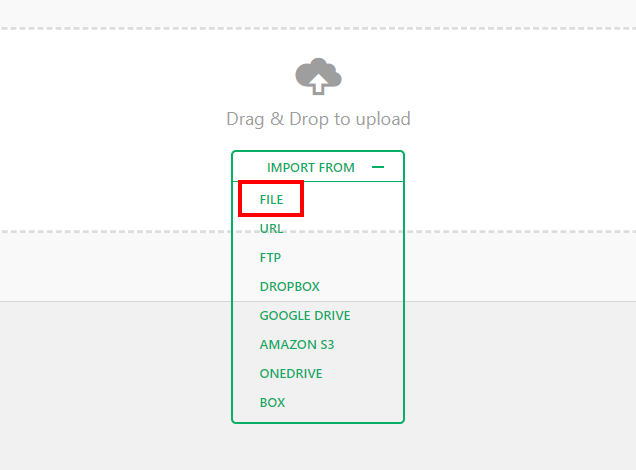
Export to file as shown in the image below.

All-in-One Migration Export to File

The plugin will create a file containing your entire site, including the database. After it starts you need to stay on the page and wait for it to finish.

All-in-One Migration Creates a File

Download the file when it is finished (see image below).

Download the All-in-One Migration File

Now log in to to the WordPress site you created on your web host and import the file you just downloaded, using the All-in-One Migration plugin.

Import the All-in-One Migration File
Congratulations!

You just migrated your local site to a web host using the WordPress All-in-One Migration plugin. Your password and user name will be the same as they were for your local site. Please make sure your password is strong to avoid being hacked.

Install The Duplicator Plugin

The makers of the Duplicator plugin have created a very good and detailed quick start guide that walks you through the entire process and explains everything very well, so we recommend visiting their site to learn how to use this plugin.

Duplicator Quick Start Guide

The Best WordPress Migration Plugins
Learning How to Use WordPress Just Got Easier

How to Successfully Migrate Your Website using the WPvivid Backup Plugin

Website migration can be a complex task, but it can be simplified with the right approach and tools. This article will guide you through migrating your website using the WPvivid Backup Plugin. This plugin offers a user-friendly solution that ensures a smooth transfer without data loss or downtime.

Download the WPvivid Migration, Backup, and Staging Plugin for WordPress.

Understanding the WPvivid Backup Plugin

The WPvivid Backup Plugin is specifically designed for WordPress websites and provides a range of features to facilitate website migration. It allows you to create comprehensive website backups, including files, databases, plugins, themes, and settings. The plugin is compatible with various hosting environments and offers an intuitive interface for easy navigation and configuration.

Preparing for Migration

Before initiating the migration process, it is crucial to make the necessary preparations. Start by creating a backup of your website using the WPvivid Backup Plugin. Verify the backup files to ensure their integrity and completeness. Additionally, ensure that the new hosting environment meets the requirements of your website.

Installing and Configuring the WPvivid Backup Plugin

Begin by installing the WPvivid Backup Plugin from the WordPress Plugin Directory. Once installed, configure the plugin settings according to your preferences. Customize backup options, such as frequency and storage locations, to suit your needs.

Backing Up Your Website

With the WPvivid Backup Plugin set up, you can create a website backup. Access the plugin dashboard in your WordPress admin panel and navigate to the backup section. Choose whether to perform a full backup or select specific files and databases for backup. WPvivid offers flexibility in storing backups locally or utilizing cloud storage services.

Migrating Your Website

You need to set up a new hosting environment to migrate your website. Once ready, upload the backup files to the new environment. Configure the database settings to establish proper connectivity. WPvivid provides a seamless file transfer functionality and offers options for automatic database updates during migration.

Restoring Your Website

Initiate the restoration process using the WPvivid Backup Plugin. Follow the step-by-step wizard to unpack the backup files, restore databases, and recreate necessary files and folders. Verify the restored website for proper functioning, and address any common migration issues with the help of WPvivid’s support resources.

Best Practices for Successful Migration

To ensure a successful website migration, follow these best practices:

  • Thoroughly test the migrated website to ensure all pages, links, and functionalities work correctly.
  • Update DNS settings to redirect your domain name to the new hosting environment.
  • Monitor website performance after migration, checking loading times and server response.

Conclusion

Migrating a website is a critical process, and the WPvivid Backup Plugin offers a reliable solution to simplify the task. Following the steps outlined in this article and adhering to best practices, you can successfully migrate your website using WPvivid. Enjoy a seamless transition to your new hosting environment with minimal disruption.


FAQs

1. Can I use the WPvivid Backup Plugin for non-WordPress websites?

No, the WPvivid Backup Plugin is exclusively designed for WordPress websites and may not be compatible with other platforms.

2. Is the WPvivid Backup Plugin free?

The WPvivid Backup Plugin offers both free and premium versions. The free version provides basic backup and migration functionalities, while the premium version includes advanced features and additional support options.

3. How long does it take to migrate a website using the WPvivid Backup Plugin?

The time required for website migration varies depending on factors such as website size, server speed, and complexity of the migration process. However, the WPvivid Backup Plugin streamlines the process to minimize

the time needed for migration, ensuring efficiency and a smooth transition.

4. Can I schedule automatic backups with the WPvivid Backup Plugin?

Yes, the WPvivid Backup Plugin allows you to schedule automatic backups according to your preferred frequency. You can set up daily, weekly, or monthly backups to ensure regular data protection.

5. What should I do if I encounter any issues during the migration process?

If you experience difficulties or have questions during the migration process, the WPvivid Backup Plugin provides comprehensive documentation and support resources. You can refer to the plugin’s documentation for troubleshooting guidance or contact their support team for further assistance.

To learn more about the WPvivid Backup Plugin and its benefits, visit their website to learn more about the All-in-One Backup & Migration Plugin for WordPress.

Armed with the knowledge and steps outlined in this article, you can confidently migrate your website using the WPvivid Backup Plugin. Enjoy a seamless transition to your new hosting environment while ensuring the safety and integrity of your valuable website data.

Final Thoughts

There are a lot of possible settings and uses for both for these plugins but you will find they are very easy to use after going through the tutorials. Both of these plugins are also great for backing up your site, though we prefer UpdraftPlus for backups since you can have your backups emailed to you or sent to your cloud storage account. You can send backups to Google Drive using the free version, but the paid version adds many more cloud storage options like Dropbox.

Summary

  1. Devlop WordPress Sites Locally
  2. WordPress Migration is Easy
  3. All-in-One Migration
  4. WordPress Duplicator Plugin

Update: 01/07/2018

In this article, we discussed the importance of backing up your WordPress site using multiple methods before migrating, and we want to stress again the importance of doing so in this update.

Recently we moved several of our clients to a new host using our go-to method, backing up the files and database and uploading them to the new host. Restoring your site using this method is a simple and straightforward method that works perfectly in the majority of cases. However, one of the websites did not work correctly after migration.

The home page and many of the other pages worked fine, but upon further inspection, some pages were generating a 500 Internal Server Error. It would have been possible to debug the issue, but it requires developer-level knowledge most users do not possess, and even with that knowledge we may have needed several hours to correct the problems.

How We Resolved the Issues

Resolving the issues was quite simple, we just installed a fresh copy of WordPress and the All-in-One Migration plugin we recommend in this article, uploaded the backup we created, and the site was back up in minutes.

This case is a prime example of the need to use multiple methods of backing up your site before migration, and even as part of your regular backup plan. Because if you have any problems migrating your site or restoring it after an update or getting hacked, most likely you can save yourself hours of work or a lot of money, which you would have paid a developer to debug your site and restore it.

Disclosure: You may find affiliate links to beneficial resources within this article. You won’t pay more for using our link, but we’ll get a commission. This supports our content creation, and we only suggest products we genuinely believe in. Thank you for being so understanding!

Affiliate Links

James Turner

James Turner

Author/Copywriter

Why Choosing the Best Web Hosting Company Matters in 2025

Find out why choosing the best web hosting company matters in 2025 to boost your site’s performance and skyrocket sales.

Hiring a Website Designer

Hiring a website designer? Discover actionable tips, red flags to avoid, and how to find the right designer to create a website that grows your business.

How to Create a Landing Page Using WordPress

Follow our guide on how to create a landing page using WordPress and the built-in Block Editor, page builder plugins, or specialized themes.

How to Install WordPress Locally on Windows or Mac

How to Install WordPress Locally on Windows or Mac

Home » WordPress » Page 13

Create a Server on a Windows or Mac Computer and Install WordPress Locally

If you’re looking to enhance your understanding of WordPress or expedite the process of website development and testing, learning how to create a server on Windows and install WordPress locally on either a Windows or Mac computer is highly advantageous.

By opting for a local installation, you create an environment that facilitates a smoother learning curve and empowers you to assess the compatibility and stability of various plugins or themes before implementing them on your live website. By streamlining your workflow, you reduce the likelihood of problems that could negatively affect the functionality of your live website.

You may also be interested in these helpful XAMPP FAQs.

Step 1: Download and Install XAMPP

This step is very easy, you only need to choose one of the download links below based on the type of computer you use. Save the file to your desktop or somewhere it will be easy to find.

Download XAMPP Portable for Windows

or

Download XAMPP for MAC


Windows 10 Installation
We Prefer XAMPP Portable on Windows 10 Computers
Using XAMPP as a Local Server
XAMPP contains the Apache server, MySQL, Filezilla FTP server, Tomcat, and Mercury. However, we will only be focusing on using the Apache server and MySQL to run WordPress on your computer. You are welcome to search for information on using the other components if you would like to learn how to run your own web server. However, running a web server is very complex due to security and performance issues, so we recommend leaving that to a reputable web host.

To Run WordPress Locally You Will Need to Install

  • Apache Web Server
  • MySQL Database Server
  • PHP
  • phpMyAdmin
“One of the things you will love most about a local WordPress installation is how fast it is. Another great benefit is the ability to create as many local sites as you want.”

Step 2: Install XAMPP

Now that you have downloaded XAMPP you need to install it.

Window Computers: Click the file you downloaded to copy the portable version of XAMPP to your C: drive, which is normally the drive where Windows is installed.

XAMPP Portable for Windows

Next you will need to select the services you wish to install. You will need a minimum of Apache, MySQL, PHP and phpMyAdmin. You can uncheck FileZilla, Mercury, Tomcat, Webalizer and Fake Sendmail to save a little space or leave them all checked, which is the default setting.


XAMPP Services for Windows

Macintosh: (no screenshots) This is just as easy, just unzip the file you downloaded and drag that folder into your Applications folder.

WordPress
Learning How to Use WordPress Just Got Easier

Step 3: Testing Your XAMPP Installation

Your local server should be installed and ready to go, but before we install WordPress let’s test your XAMPP installation to make sure everything works properly.

Starting XAMPP (Windows)
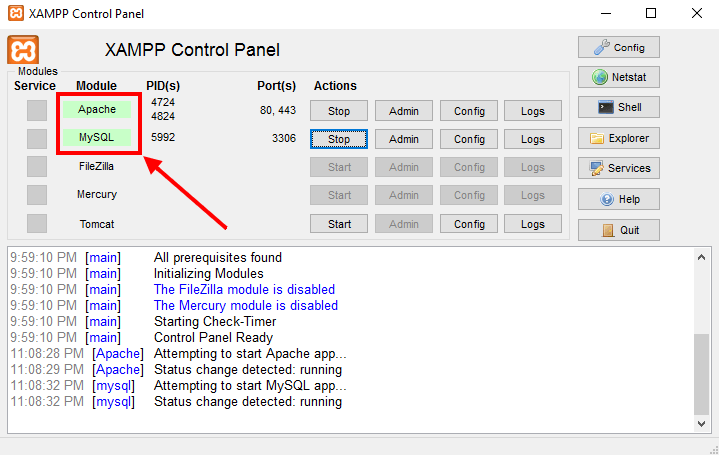
Navigate to the folder where you installed XAMPP (C:/xampp/) and click on the “xampp-control” icon, which will start the control panel. Now click the Start button next to Apache and MySQL. If it is working properly the names of the services will be highlighted in green. Red or yellow indicates a problem with your installation.

XAMPP Control Panel

Starting XAMPP (Mac)

To start XAMPP simply open XAMPP Control (by going to /Applications/XAMPP/XAMPP Control in Finder) and start Apache and MySQL. If the MySQL server does not start, you may need to set the permissions to 777 using Terminal.

The command is “chmod -R 777 /Applications/XAMPP/xampfiles/var” without the quotes.

Installing XAMPP on Windows – The Text Version (Step by Step)

Step 1: Begin by visiting the official website of Apache Friends. Navigate to the section where you can download the XAMPP software package.

Step 2: Select and acquire the latest version of XAMPP tailored for Windows, ensuring compatibility with your specific operating system.

Step 3: Once the download completes, locate the downloaded file and perform a double-click to initiate the installation process.

Step 4: The XAMPP installer will manifest on your screen. Advance the installation by clicking the “Next” button.

Step 5: A selection of components available for installation will be presented. Unless you have specific requirements, it is generally recommended to keep all components checked. Proceed by selecting “Next.”

Step 6: Determine the desired installation directory for XAMPP. The default location is typically “C:\xampp,” but feel free to customize it as needed. Click “Next” to proceed.

Step 7: During the installation, you might encounter a prompt about installing Bitnami for XAMPP. If you wish to install any of the offered applications, simply select them. Otherwise, uncheck the boxes and click “Next.”

Step 8: After one more click on “Next,” the installation process will commence. Be patient as this step may take a few minutes to complete.

Step 9: Once the installation concludes, a confirmation message will appear. Ensure that the option to start the XAMPP Control Panel is selected, and then click “Finish.”

Step 10: Now, the XAMPP Control Panel will open before you. Through this panel, you can effectively manage the Apache web server, MySQL database, and other components bundled within the XAMPP package.

Step 11: To verify the successful installation of XAMPP, launch your web browser and enter “http://localhost” into the address bar. If you encounter the XAMPP welcome page, it signifies the completion of the installation process.

Congratulations! You have successfully configured XAMPP on your Windows 10 machine. You are now ready to embark on various web development and testing endeavors using this versatile tool.

Step 4: Installing WordPress on Your Local Server

Now that your local server is up and running, you are ready to install WordPress. This is actually quite easy to do, but there are quite a few steps involved, so follow the instructions below carefully and you will have WordPress up and running in minutes

Open phpMyAdmin by Clicking the Admin Button
Open phpMyAdmin
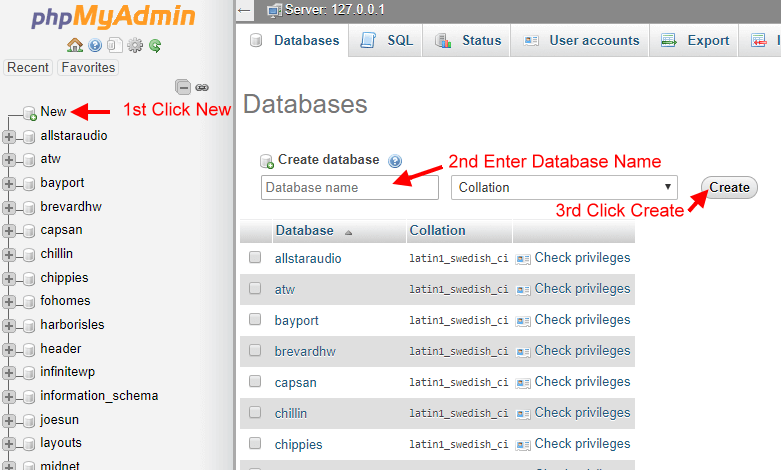
Create a Database Named “wordpress” Using phpMyAdmin
Create a Database With phpMyAdmin

Download The Latest Version of WordPress – Click Here

Download WordPress

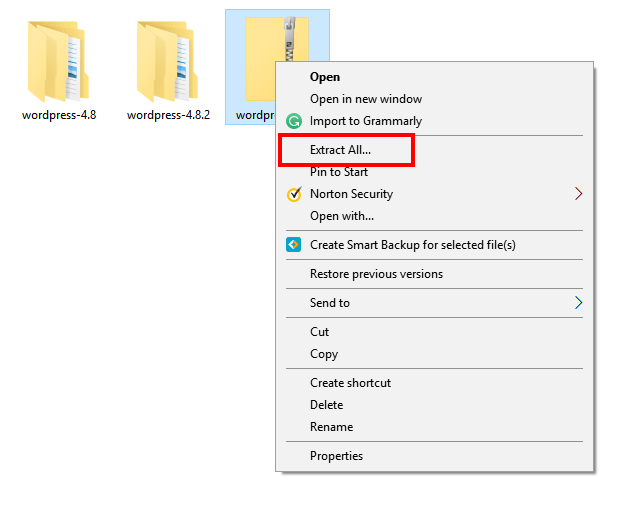
Right Click the Zip File You Download and Click “Extract All”

Unzip WordPress Folder

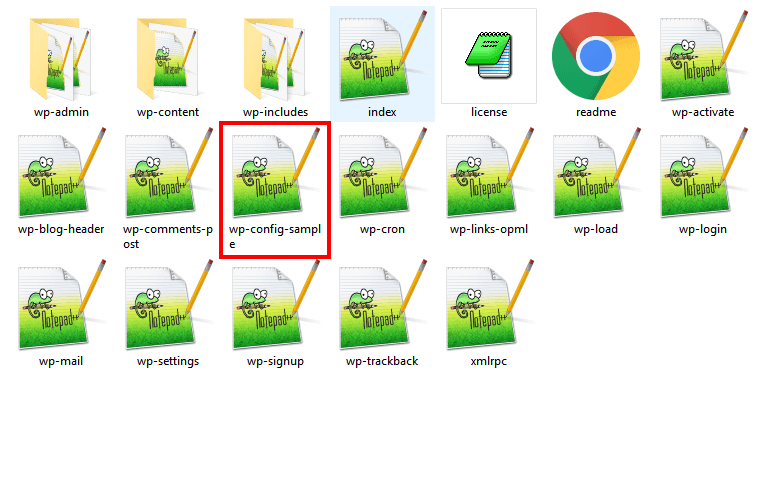
Open the Folder and Rename wp-config-sample to wp-config

Rename wp-config-sample
Edit wp-config With a Text Editor Like Notepad or Notepad++

The database name is the same as you created, which is “wordpress” without quotes. The username is the server default “root” without quotes and the password should be blank, so you will need to delete “password_here” but NOT the single quotes. Click on the link https://api.wordpress.org/secret-key/1.1/salt/ in your text editor or copy and paste it into your browsers address bar and replace the lines of code below. Be sure that you ONLY REPLACE THE CODE HIGHLIGHTED IN THE IMAGE BELOW.

Your Edited wp-config Should Look Like The Image Below

Edited wp-config

Please note the “Unique Keys and Salts” will be different than pictured, which is the normal and desired result, since these are unique security keys, which should be different for every WordPress website you create.

CONGRATULATIONS! The Hard Part is Over.

Now Let’s Finish Installing WordPress

The last step is to copy your wordpress folder to C:\xampp\htdocs and type or copy and paste http://localhost/wordpress/ into your browsers address bar. Select your language, and follow the prompts. Even though this is a local install you should use a strong password since the username password will remain the same should you decide to transfer your WordPress website to a web host in the future.

WordPress
WordPress Design
WordPress Code
WordPress Security

Frequently Asked Questions About XAMPP

What is XAMPP?
XAMPP is a free and open-source software package that includes Apache web server, MySQL database, PHP programming language, and Perl interpreter. It is designed to make it easy to set up a local web server environment for web development and testing purposes.

How do I install XAMPP?
To install XAMPP, you can download the package from the official website and run the installation program. The installation process is straightforward, and you can choose which components to install.

What operating systems does XAMPP support?
XAMPP is compatible with Windows, Linux, and macOS operating systems.

What is the purpose of XAMPP control panel?
The XAMPP control panel allows you to start and stop Apache, MySQL, and other components of XAMPP. It also provides access to the configuration files and logs of these components.

How do I start and stop Apache and MySQL using XAMPP control panel?
To start Apache and MySQL, you can simply click the “Start” button next to each component in the XAMPP control panel. To stop them, click the “Stop” button.

How do I access phpMyAdmin using XAMPP?
To access phpMyAdmin, open your web browser and type “localhost/phpmyadmin” in the address bar. This will take you to the phpMyAdmin login page where you can enter your username and password.

How do I configure Apache and PHP settings in XAMPP?
You can edit the “HTTPD .conf” file in the “apache” folder of XAMPP to configure Apache settings. To configure PHP settings, edit the “PHP .ini” file in the “PHP” folder of XAMPP.

How do I create a new database in MySQL using XAMPP?
To create a new database in MySQL, access phpMyAdmin and click on the “Databases” tab. Enter a name for your new database and click the “Create” button.

Can I use XAMPP for production websites?
While XAMPP is primarily designed for local development and testing, it is possible to use it for small-scale production websites. However, it is not recommended for high-traffic or mission-critical websites.

How do I uninstall XAMPP?
To uninstall XAMPP, you can simply delete the XAMPP folder from your computer. However, this will also delete any data stored in MySQL databases. If you want to keep your data, you should back up your databases before uninstalling XAMPP.

How Do I Update XAMPP?

To update XAMPP, you can follow these steps:

  1. First, backup all your data and files in the XAMPP directory before updating.
  2. Download the latest version of XAMPP from the official Apache Friends website.
  3. Run the downloaded installer and choose the directory where you installed XAMPP.
  4. During installation, you may be prompted to choose which components you want to install or update. Select the components you want to update or install and click the “Next” button.
  5. Follow the prompts to complete the installation process. The installer may ask you to stop the XAMPP services, so ensure that before proceeding.
  6. Once the installation is complete, you can start the XAMPP services and test to ensure everything works correctly.

Note: It is recommended to update XAMPP regularly to keep it up-to-date with the latest security and bug fixes.

Watch Our YouTube Video

Final Thoughts On Installing WordPress

Congratulations on installing XAMPP and WordPress Locally on your computer. Whether you are an experienced developer or new to WordPress, you are going to love being able to do almost anything you can do on a hosted site, at blazing fast speeds. If you want to install on a web host, check out our article on How to Install WordPress in Minutes for detailed instructions.

Summary

  1. Install XAMPP on Windows, Mac, or Linux
  2. Local WordPress Installations are FAST
  3. Install Multiple Instances
  4. Fantastic for Beginners
  5. Essential for Developers

Note: Your computer’s resources are the only limit to the number of WordPress installations possible. However, since you will typically only run one or two sites simultaneously, it is unlikely you will ever run into any issues. At My Island Designs, we have created over one hundred local sites on a single computer without any problems.

Disclosure: You may find affiliate links to beneficial resources within this article. You won’t pay more for using our link, but we’ll get a commission. This supports our content creation, and we only suggest products we genuinely believe in. Thank you for being so understanding!

Affiliate Links

James Turner

James Turner

Author/Copywriter

Why Choosing the Best Web Hosting Company Matters in 2025

Find out why choosing the best web hosting company matters in 2025 to boost your site’s performance and skyrocket sales.

Hiring a Website Designer

Hiring a website designer? Discover actionable tips, red flags to avoid, and how to find the right designer to create a website that grows your business.

How to Create a Landing Page Using WordPress

Follow our guide on how to create a landing page using WordPress and the built-in Block Editor, page builder plugins, or specialized themes.

Clean Website Design

Clean Website Design

Home » WordPress » Page 13

Clean website design infers a minimalistic, straightforward style with a lot of white space, which has become increasingly popular over the last few years. This is so that the items and services offered can capture visitors’ attention without using extraneous design elements that can distract them. A clutter-free website has simple designs, large text, and graphics.

There are a few guidelines that every competent website designer is aware of, even though there may not be many that are generally accepted. Content is king, to start. Second, quicker-loading websites are typically preferable. Thirdly, there must be obvious calls to action that nudge site users to complete a particular task, such making a purchase, completing a form, or getting in touch with the company.

How a Clean Website Benefits You

Simple websites are good since they load quickly and emphasize obvious calls to action more. This benefits your business by raising the likelihood that visitors will take a certain action that can ultimately result in a conversion and enhance the user experience.

Working With Your Website Designer

Collaborating closely with your website designer is imperative to ensure that your website is tailored to meet your expectations. Ensure the content is divided into the appropriate pages and the pictures and text are arranged logically on each page. This can assist in developing a clear website that makes it simpler for users to locate specific information about your company, goods, or services. Gain valuable insight into the cost-effectiveness of hiring a website designer versus undertaking the task yourself. Make an informed decision on whether to build your website independently or enlist the services of a professional agency.

Working closely with your website designer is essential if you want to make sure that your website is created to fit your expectations. Ensure the content is divided into the appropriate pages and the pictures and text are arranged logically on each page. This can assist in developing a clear website that makes it simpler for users to locate specific information about your company, goods, or services.

Gain valuable insight into the cost-effectiveness of hiring a website designer versus undertaking the task yourself. Discover Why Hiring a Website Designer is Cheaper Than Doing it Yourself and make an informed decision on whether to build your website independently or enlist the services of a professional agency.

“Good design is obvious. Great design is transparent.” – Joe Sparano

This quote underscores the significance of a streamlined and uncluttered website layout. A well-designed website should enable users to seamlessly navigate and interact without conscious awareness of the design’s presence. The design should avoid diverting attention from the website’s content or functionality. A proficient website designer comprehends the delicate equilibrium between aesthetics and usability, crafting a visually captivating and highly functional design.

Designing a Clean and Modern Website for a Client

Designing a Clean and Modern Website for a Client

What is a Clean and Modern Website Design?

“Clean websites” refer to a design style characterized by a minimalistic and uncluttered approach, focusing on simplicity, clarity, and ease of use. These websites often have a streamlined layout with ample white space, crisp typography, and a clear information hierarchy.

The key features of clean websites include:

  1. Minimalism: Clean websites tend to have a minimalist aesthetic, reducing unnecessary elements and distractions. They employ a “less is more” approach, emphasizing essential content and removing excessive visual clutter.
  2. White Space: Clean websites make effective use of white space or negative space, which refers to the empty areas between elements. This space helps create a sense of balance, enhances readability, and directs attention to the important elements on the page.
  3. Simple and Intuitive Navigation: Clean websites typically have a straightforward and easy-to-navigate structure. They often use a simple menu, clear labels, and intuitive icons to guide users through the site’s content.
  4. Crisp Typography: Typography plays a crucial role in clean website design. These websites employ clean and legible fonts with ample spacing between letters and lines. Sans-serif fonts are commonly used for their modern and clean appearance.
  5. Limited Color Palette: Clean websites usually employ a limited color palette, focusing on a few harmonious colors. The chosen colors are often subtle and neutral, enhancing the overall sense of simplicity and cleanliness.
  6. High-Quality Imagery: While clean websites aim for simplicity, they still utilize high-quality imagery to convey their message effectively. Images used in clean designs are usually well-composed, sharp, and relevant to the content.
  7. Consistency and Uniformity: Clean websites maintain consistency in terms of layout, color scheme, typography, and overall style throughout the site. This helps create a cohesive and harmonious user experience.

Why is Clean and Modern Website Design Important?

A clean and modern website design is important for several reasons:

  • It attracts more visitors
  • It enhances the user experience
  • It encourages engagement
  • It boosts conversions

A website’s conversion rate can be increased, first impressions can be strengthened, and users’ time spent on the site can be maximized by adopting a modern, minimalist design aesthetic.

Tips for Clean and Modern Website Design

Here are some tips and best practices for creating a clean and modern website design:

  1. Use a simple color palette
  2. Focus on typography
  3. Use high-quality imagery
  4. Create a clear hierarchy
  5. Utilize white space
  6. Make it mobile-friendly
  7. Use consistent branding
  8. Keep it fast-loading
  9. Make it easy to navigate

A clutter-free, aesthetically pleasing user experience that makes it simple for visitors to access information and engage with the site’s content is the aim of clean website design.

Modern Website Design FAQs

Modern Website Design FAQs

FAQs About Clean and Modern Website Design

We’ve included a collection of frequently asked questions and their respective responses here to assist you in comprehending what clean website design is, why it matters, and how it can help establish your brand.

What distinguishes a clean and modern website from a cluttered one?

A cluttered website features too much content, poor organization, and lacks visual hierarchy, while a clean and modern website design prioritizes simplicity, minimalism, and user-friendliness. There are 17 Reasons Why Your Website Should Have a Clean and Simple Design. A more streamlined and contemporary design will load faster, be easier to use, and look better for your visitors.

How can I make my website mobile-friendly?

Use a mobile-first approach, a grid system, optimized images and videos, and scalable fonts to optimize your website for mobile devices. Using Google’s tools, you may also test your website on different mobile devices.

Mobile-friendly design methods optimize website performance and aesthetics on PCs, tablets, and smartphones. This guarantees that your website functions and appears correctly, making it mobile-friendly. Also, you should optimize your photos for mobile, use large fonts and straightforward navigation, and avoid using pop-ups or other components that may be difficult to utilize on a smaller screen.

What is the importance of white space in website design?

White space, commonly called negative space, is crucial for establishing a sense of balance and visual hierarchy on websites. It gives the items on the page breathing room, making them simpler to read and interpret. Furthermore, white space can make a design feel more elegant and sophisticated and bring attention to crucial items on the page.

How can I improve the loading speed of my website?

You can enhance your website’s loading time by optimizing photos and other media files, employing a content delivery network (CDN), minifying your code, and lowering the amount of HTTP requests. You should also select a reputable hosting company and ensure that your website’s code is optimized for performance.

What is the best way to ensure consistent branding on my website?

Using the same colors, fonts, and graphics throughout your website is the greatest approach to create consistent branding. Make certain that your logo and other branding elements are prominently displayed on each page. Consistent branding contributes to developing a strong brand identity and makes your website more memorable to users.

Why is it important to make my website easy to navigate?

Making your website easy to navigate helps users find what they need quickly. Visitors may grow frustrated and depart if your website is difficult to browse, resulting in a greater bounce rate and lower conversion rates. You can give a better user experience and enhance the possibility that visitors will become customers by making your website easy to navigate.

What is the best way to choose a color palette for my website?

Starting with your brand’s primary colors and building from there is the best way to establish a color palette for your website. Colors that complement each other and produce a harmonious overall design should be used. You may also generate color schemes based on your brand’s basic colors using internet programs such as Adobe Color or Coolors.

What is the importance of a clear hierarchy in website design?

A clear hierarchy in website design is vital because it helps users grasp the material’s structure and traverse the website more simply. Enhance user experience and optimize engagement on your website by implementing strategic headings, subheadings, and visual cues to emphasize the significance and organization of your content.

How can I ensure that my website is accessible to people with disabilities?

The Web Content Accessibility Guidelines (WCAG) (W3C) should be followed if you want to make sure that people with impairments can access your website. This involves making your website keyboard accessible, using descriptive alt text for images, providing subtitles for movies, and ensuring compatibility with screen readers and other assistive devices. You can visit the Accessibility page at WordPress.org to find information specific to WordPress.

How can I best integrate professional-grade photos into my website layout?

Using professional images or graphics related to your business and message is the greatest approach to incorporating high-quality photography into your website design. You should also optimize your photographs for web use by adopting a file type that balances quality and file size, such as JPEG or PNG. Moreover, verify that your photos are properly scaled and compressed to ensure fast download times.

What is the importance of fast-loading times for my website?

Quick loading speeds are critical for your website since they can influence user experience and search engine optimization (SEO). Visitors are more inclined to interact with a website that loads quickly, while slower loading times can result in higher bounce rates and poorer conversion rates. Furthermore, search engines like Google prioritize fast-loading websites in search results, so reducing your website’s loading speeds using the Top 5 Plugins for WordPress Speed Optimization can enhance your SEO rankings and attract more organic visitors to your site.

Modern Website Design FAQs

Modern Website Design FAQs

Final Thoughts on Clean Website Design

The significance of maintaining a clean design for your website in today’s digital landscape cannot be dismissed. It’s like your online business card, delivering that pivotal first impression. Creating clean website designs is one of the 10 Reasons Why You Need to Hire a WordPress Website Designer.

What does a clean website design mean? The utmost importance lies in simplifying, streamlining, and standardizing processes. A website that fulfills its stated goals and allows visitors to get the information they need quickly is a success. This creates a positive user experience, increasing the chances of your visitors sticking around, engaging with your business, and potentially becoming loyal customers.

Clean Website Designs Make a Statement

Additionally, a clean website design says a lot about your brand. You’re sending a message about the personality and offerings of your brand by avoiding a cluttered look. Our platform ensures that your website visitors comprehend your brand identity and the value proposition you provide clearly and straightforwardly. This clarity encourages remembering and cultivates credibility and trust, both essential for long-term economic success.

Minimalist Design

From a technical standpoint, a minimalist design also means faster loading times and compatibility with various devices. With people using everything from smartphones to desktops to access the web, a design that renders well on all platforms is crucial. It is worth noting that a website design that is both simple and clean can facilitate search engines in comprehending and cataloging your website, potentially enhancing your discoverability in search outcomes.

In conclusion, a pristine website layout encompasses more than just aesthetic appeal. It’s also about delivering a smooth user experience, solidifying your brand’s identity, ensuring your website functions optimally across different devices, and making your site search engine friendly. It’s a crucial aspect of your digital strategy that can directly influence your online success.

Disclosure: You may find affiliate links to beneficial resources within this article. You won’t pay more for using our link, but we’ll get a commission. This supports our content creation, and we only suggest products we genuinely believe in. Thank you for being so understanding!

Affiliate Links

James Turner

James Turner

Author/Copywriter

Why Choosing the Best Web Hosting Company Matters in 2025

Find out why choosing the best web hosting company matters in 2025 to boost your site’s performance and skyrocket sales.

Hiring a Website Designer

Hiring a website designer? Discover actionable tips, red flags to avoid, and how to find the right designer to create a website that grows your business.

How to Create a Landing Page Using WordPress

Follow our guide on how to create a landing page using WordPress and the built-in Block Editor, page builder plugins, or specialized themes.

My Island Designs

Pin It on Pinterest