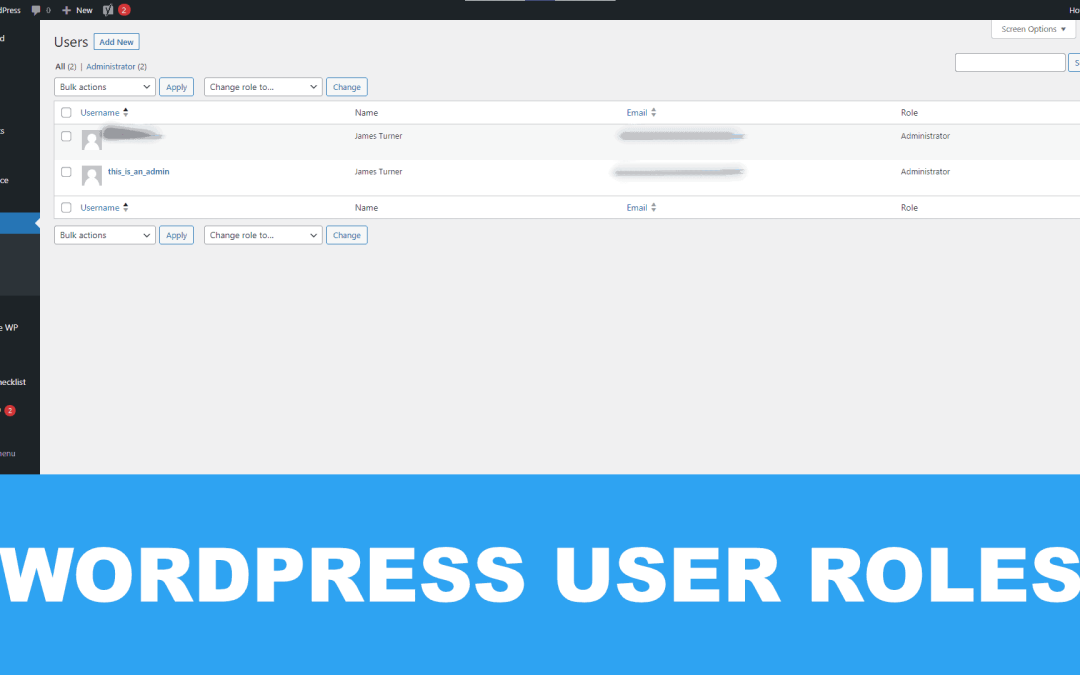
Understanding WordPress User Roles

Understanding WordPress User Roles

Home » WordPress Security

WordPress shines like a beacon in the dynamic world of web development platforms. It’s more than simply a tool; it helps those who aren’t particularly tech-savvy discover the joys of the Internet for the first time. As we venture further into this territory, we’ll seek clarity on the myriad facets of WordPress user roles. Whether you’re a seasoned developer or just setting out on your digital voyage, together, we’ll unearth the hidden gems that make WordPress so unique and integral. So, come along as we journey through the layered depths of this remarkable platform.

A Question About WordPress User Roles

Cindy H. Asked: “I’ve just started using WordPress and am a bit overwhelmed. Can you define user roles and why they are important?”

Answer:

Absolutely! WordPress user roles define the permissions for user actions, such as publishing content, managing plugins, or even altering core settings.

WordPress Tip:

10 Reasons Why You Need to Hire a WordPress Website Designer

“If you still use ‘admin’ as a username on your blog, change it.” – Matt Mullenweg
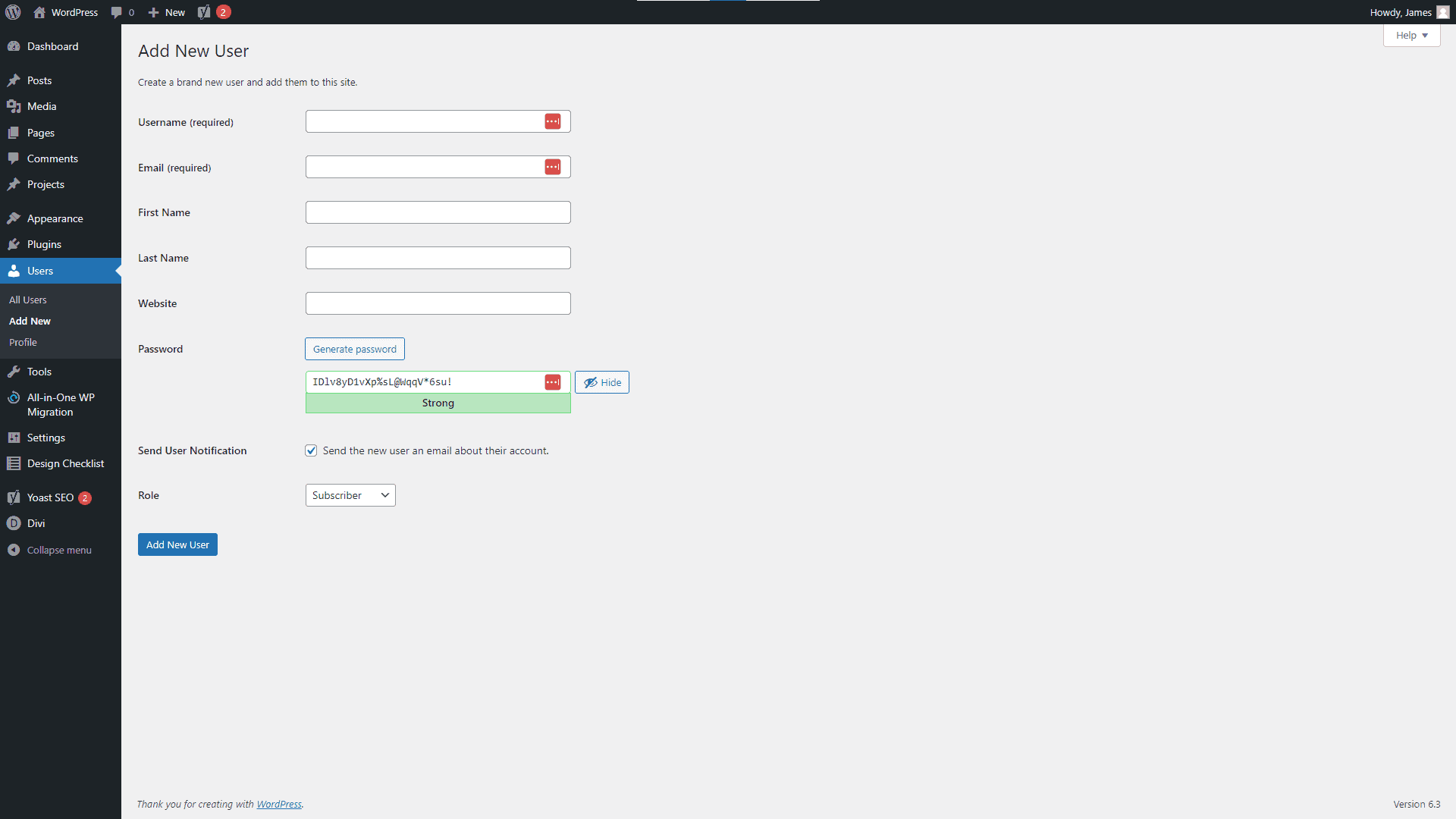
WordPress Dashboard Add New User Screenshot
WordPress Dashboard Add New User Screenshot

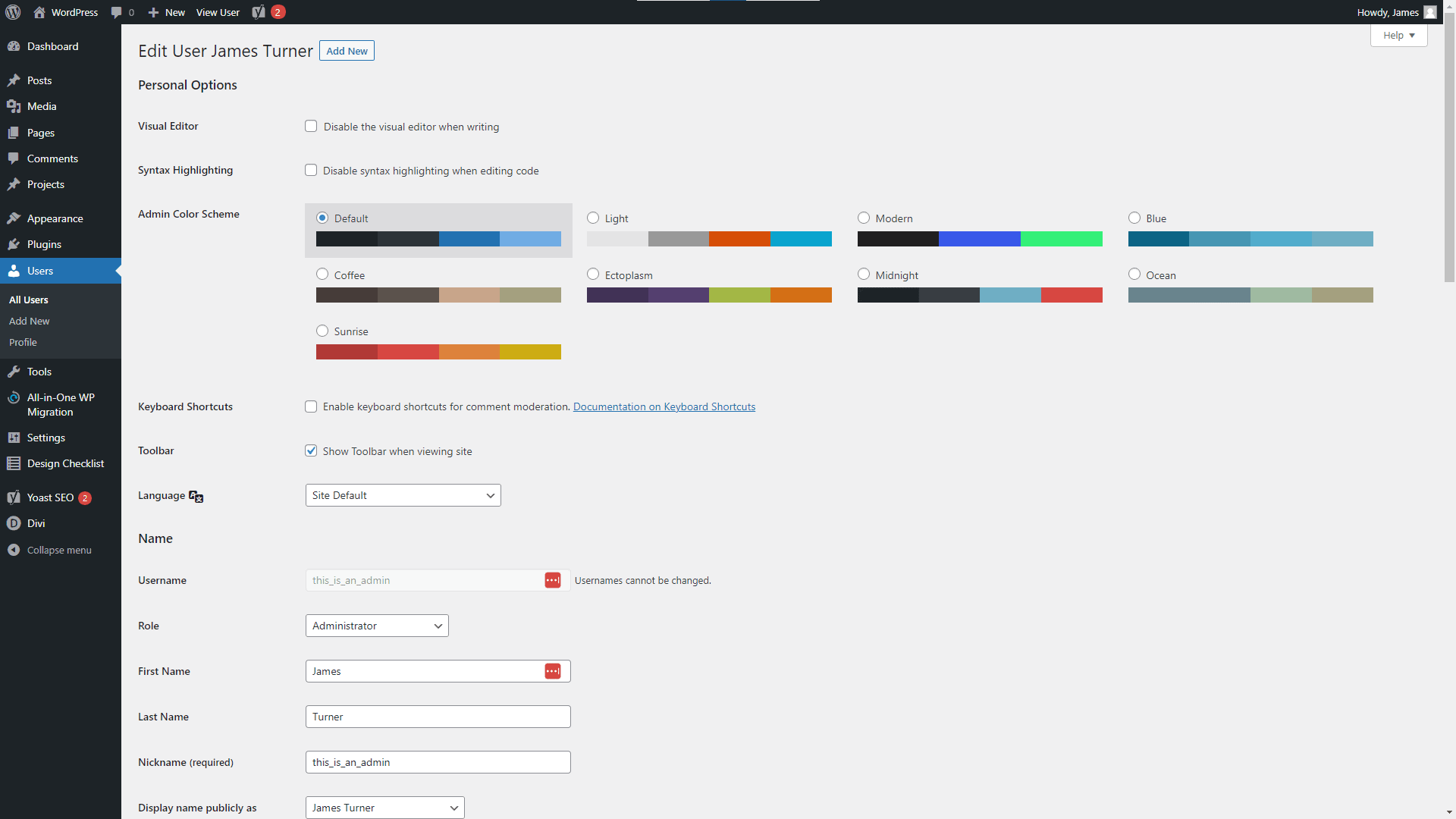
WordPress Dashboard User Profile Screenshot

WordPress Dashboard User Profile Screenshot

WordPress User Roles Explained

Just as a ship needs its crew, each playing a distinct role, WordPress websites require varied users, each with its permissions. Imagine being the captain but being restricted from steering the ship—that’s precisely why understanding WordPress roles is paramount!

The All-Powerful Administrator

Ah, the Administrator! This is the digital realm’s captain. Holding the map to every nook and cranny of your WordPress website, they can venture everywhere, from the deck (your content) to the ship’s treasure chest (plugins and themes).
WordPress official documentation perfectly describes this role as the master of the domain.

The Watchful Eye: Editor

The Editor, our first mate, oversees the content landscape, ensuring that stories are well-told and messages sail smoothly. However, they’re bound by certain limitations. For instance, they can’t modify the ship’s structure or appearance.

The Talented Author

Every ship has its storyteller, and in WordPress, it’s the Author. They can weave and share their tales, but they can’t meddle with others’ stories.

The Humble Contributor

Remember the sailor who’d sometimes bring tales from distant lands? That’s our Contributor—providing stories but waiting for the Editor’s nod to share them with the world.

The Loyal Subscriber

The audience, or the Subscriber, awaits the tales and adventures. Their role? To listen, engage, and be a part of the journey.

FAQs: Answering the Unsung Questions

Why is role management essential in WordPress?

Role management helps organize the workflow, ensuring that users have access only to areas relevant to their responsibilities. This not only enhances efficiency but also secures your site from unintentional changes.

Can I create custom user roles?

Absolutely! With plugins like User Role Editor, you can tailor roles to your website’s unique needs. Think of it as customizing roles on your ship.

How do I change a user’s role?

Changing roles is a breeze. Navigate to your WordPress dashboard, head to ‘Users’, select the user, and alter the role from the dropdown. It’s like assigning new duties on deck!
Security Starts With Strong Usernames and Passwords

Security Starts With Strong Usernames and Passwords

Final Thoughts & Recommendations on Understanding WordPress User Roles

  • Review roles periodically, ensuring they align with the user’s tasks.
  • Limit the number of Administrators. A ship with too many captains can sink!
  • Choosing the Right Web Hosting Company for Your Business
  • Consider using workflow plugins for multi-author websites to streamline the content approval process.
  • Always backup before making significant role changes. Better safe than sorry.
  • Stay updated with WPBeginner for the latest on WordPress roles and capabilities.

Disclosure: You may find affiliate links to beneficial resources within this article. You won’t pay more for using our link, but we’ll get a commission. This supports our content creation, and we only suggest products we genuinely believe in. Thank you for being so understanding!

Affiliate Links

James Turner

James Turner

Author/Copywriter

Why Choosing the Best Web Hosting Company Matters in 2025

Find out why choosing the best web hosting company matters in 2025 to boost your site’s performance and skyrocket sales.

Hiring a Website Designer

Hiring a website designer? Discover actionable tips, red flags to avoid, and how to find the right designer to create a website that grows your business.

How to Create a Landing Page Using WordPress

Follow our guide on how to create a landing page using WordPress and the built-in Block Editor, page builder plugins, or specialized themes.

Step by Step Guide to Recovering a Hacked WordPress Site

Step by Step Guide to Recovering a Hacked WordPress Site

Home » WordPress Security

When your WordPress site falls victim to a hack, it’s natural to feel overwhelmed. But fear not! Our comprehensive step by step guide to recovering a hacked WordPress site provides clear and concise instructions to facilitate the recovery process and swiftly restore your website to its optimal functionality. Let us approach this task collaboratively and with composure.

“Protecting and recovering a hacked WordPress site is essential in today’s digital landscape.” – Brett L., Cybersecurity Expert

Secure Your Site and Identify the Hack

Secure Your Site and Identify the Hack

1. Identify the Hack

First, you need to identify the type of hack your site has experienced. The right tools can assist you in identifying the measures to undertake for the purpose of recovery. Common types of hacks include:

  • Defacement: The hacker modifies your site’s appearance or content.
  • Malware: Malicious software is inserted into your site to steal sensitive information or infect visitors’ devices.
  • SEO spam: The hacker inserts spammy links or redirects to other websites.
  • Phishing: Fake pages are created to collect sensitive information from unsuspecting visitors.

Tools like Sucuri SiteCheck, Wordfence, and these Top WordPress Security Plugins for 24/7 Website Protection can help you scan your site for malware and other signs of a hack.

Contact Your Web Host Immediately for Assitance

Contact Your Web Host Immediately for Assitance

2. Contact Your Hosting Provider

Get in touch with your hosting service and explain the situation. They could help you with things like restoring a backup of your site or looking through server logs for unusual activity, and if their support isn’t up to the task you may want to learn How to Choose the Best WordPress Web Hosting Company. They may also suggest a Content Delivery Network (CDN) or extra security measures to further fortify your website.

3. Restore a Backup

If you have a recent backup of your site, restore it to remove any malicious content, if not learn How to Create Reliable WordPress Backups before it happens again. Make sure to check your backup for signs of the hack before restoring it. If you don’t have a backup, consider using a plugin like UpdraftPlus to create regular backups in the future.

4. Update Security Measures

Update all plugins, themes, and the WordPress core to the latest versions, as outdated software can contain vulnerabilities that hackers can exploit. Additionally, remove any unused plugins or themes to minimize potential security risks.

Secure Your Site

Implement security measures to help prevent future hacks. Some options include:

  • Two-factor authentication (2FA): Require users to provide a secondary form of verification, such as a text message code, when logging in.
  • Limit login attempts: Use a plugin like Loginizer to block users after a certain number of failed login attempts.
  • Use strong passwords: Encourage users to create complex, unique passwords for their accounts.
  • Secure Socket Layer (SSL) certificate: Install an SSL certificate to encrypt data sent between your site and visitors’ browsers. Many hosts now offering a Let’s Encrypt SSL Certificate for free. If your host doesn’t you could be paying way too much for your hosting and it may be time to move to one that does offer free SSL.
Run a Cyber Security Scan On Your Website

Run a Cyber Security Scan On Your Website

5. Scan and Clean Your Site

Use security plugins to scan your site for malware, and clean any infected files. Make sure to remove all traces of the hack, including any hidden backdoors that the hacker may have installed.

6. Change Passwords and User Permissions

Change all passwords for your site, including your WordPress admin, hosting, and database accounts. Make sure to use strong, unique passwords for each account. Make sure that only authorized users can access sensitive areas of your site by reviewing their permissions.

7. Monitor Your Site

Keep an eye out for things like increased spam or user activity that doesn’t seem normal, as these could all be symptoms of a hack. A real-time monitoring and alerting plugin or service, such as Wordfence or Sucuri, is highly recommended.

Reset Your WordPress Admin Passwords Right Away

Reset Your WordPress Admin Passwords Right Away

The Story of a Hacked WordPress Website Owner

When Cynthia R. found her WordPress site hacked, she was devastated. The hacker had defaced her site, replacing her carefully crafted content with offensive images and text. But instead of giving up, Cynthia took action. She followed a step-by-step guide to recover her site, learning valuable lessons along the way.

Cynthia realized the importance of regularly updating her site’s software and plugins and removing any unused themes or plugins. She implemented two-factor authentication, limited login attempts, and encouraged strong password usage among her site’s users. Additionally, Cynthia installed an SSL certificate to further protect her site.

As a result, Cynthia successfully recovered her site and improved its security. While she regrets not taking these precautions earlier, she is grateful for the learning experience and is now more confident in her site’s security. Her recommendations for other site owners include staying informed about WordPress security best practices, regularly backing up your site, and being proactive in monitoring your site for signs of a hack.

Cynthia is proud of her ability to clean up her site, secure it, and the lessons she learned while doing it. She believes that these measures not only made her site more secure but also helped her become a more responsible and knowledgeable site owner.

Put a WordPress Backup and Recovery Plan in Place

Put a WordPress Backup and Recovery Plan in Place

“Hacked WordPress sites need a solid recovery plan. Website owners can recover compromised sites and improve security with this guidance. Preventing future attacks is key, thus site owners should follow this guidance.
” – Lisa Lee, Web Security Consultant

Conclusion

The process of restoring a compromised WordPress website can be a daunting and anxiety-inducing task. However, by adhering to this comprehensive guide, you can effectively reclaim authority over your site and implement preventative measures to mitigate the risk of future breaches. Keep up with WordPress security recommendations, update your site’s core and add-ons frequently, and keep an eye out for intrusion indicators. Never forget that the best defense against hackers is a good offense.

Disclosure: Some of the links in this post could be considered “affiliate links.” If you click on one of those links and buy the item, I’ll get a commission, but it won’t raise your price.

Affiliate Links

James Turner

James Turner

Author/Copywriter

Why Choosing the Best Web Hosting Company Matters in 2025

Find out why choosing the best web hosting company matters in 2025 to boost your site’s performance and skyrocket sales.

Hiring a Website Designer

Hiring a website designer? Discover actionable tips, red flags to avoid, and how to find the right designer to create a website that grows your business.

How to Create a Landing Page Using WordPress

Follow our guide on how to create a landing page using WordPress and the built-in Block Editor, page builder plugins, or specialized themes.

Top WordPress Security Plugins for 24/7 Website Protection

Top WordPress Security Plugins for 24/7 Website Protection

Home » WordPress Security

In today’s rapidly advancing digital landscape, ensuring the security of websites has taken center stage for both businesses and individuals who have turned to the top WordPress security plugins to help them protect their websites. As cyber threats continue to adapt and become more sophisticated, it’s of paramount importance to equip your WordPress website with appropriate protective measures. This article delves into an array of leading WordPress security plugins specifically designed to provide your site with round-the-clock protection, fortifying it against potential cyberattacks.

Table of Contents

Introduction

WordPress, the widely used Content Management System (CMS), empowers millions of websites globally. Despite its widespread usage, the platform’s popularity renders it vulnerable to malicious cyber activities. To guarantee the protection and integrity of your website, it’s crucial to employ robust security plugins that offer comprehensive defense against various attack vectors.

Discover the leading WordPress security plugins that offer round-the-clock website protection in this comprehensive article. In this article, we will delve into the features and benefits of our security plguins and explore how they can protect your website from potential threats.

How to Optimize Images for a WordPress Website

“Security is always excessive until it’s not enough.” – Robbie Sinclair, Information Security Expert and Cybersecurity Author

Wordfence Security Plugin for WordPress

Wordfence Security Plugin for WordPress

Top WordPress Security Plugins

1. Wordfence Security

Wordfence Security is a highly advanced plugin that offers extensive security measures for your WordPress website. Explore the extensive range of supplementary functionalities that render it a favored option among website proprietors.

Web Application Firewall (WAF)

Wordfence Security’s Web Application Firewall (WAF) provides continuous protection by stopping harmful requests and preventing cyber attackers from taking advantage of weaknesses in your website. The system regularly updates a list of known threats to keep your website protected from the newest cyber-attacks.

Live Traffic View

With Wordfence Security, you can keep an eye on all the requests made to your website in real-time using the live traffic view feature. This feature allows you to detect any unusual actions and quickly respond to prevent security breaches.

Country Blocking

Wordfence Security’s country blocking feature allows you to block or limit access to your website from specific countries. This can be useful if you want to prevent spam or attacks originating from specific geographic locations.

Malware Scanner

The malware scanner in the plugin examines your website’s core files, themes, and plugins to detect any harmful code or security weaknesses. The tool also checks for any hidden entry points, unwanted content designed to improve search engine rankings, and other possible security risks. The scanner gives you a report that shows what’s wrong so you can fix it.

Email Alerts

Wordfence Security sends you email notifications about any possible security threats or issues. You can change the alert settings to get notifications for certain events like unsuccessful login attempts, important issues, or when a user is unable to log in because of too many attempts.

Wordfence Security provides various features to keep your WordPress site secure from online threats.

Sucuri WordPress Security Plugin

Sucuri WordPress Security Plugin

2. Sucuri Security

Sucuri Security is a popular and comprehensive security plugin designed to safeguard your WordPress website. It offers an extensive set of features that are tailored to protect your site from various cyber threats. Some of the key features of Sucuri Security include:

  • Security Activity Auditing: This feature monitors and logs all activities on your website, helping you detect suspicious behavior and identify potential security threats.
  • File Integrity Monitoring: Sucuri Security checks your WordPress core files, themes, and plugins against their original versions to identify any unauthorized changes or modifications. This helps you detect malware or other security issues that may have infiltrated your site.
  • Remote Malware Scanning: The plugin checks your website for harmful software, unauthorized access points, and other malicious code to make sure your site stays secure and free from harm.
  • Blacklist Monitoring: Sucuri Security checks if your site has been blacklisted by popular security services such as Google, Norton, or McAfee. Being blacklisted can negatively impact your site’s reputation and search engine ranking.
  • Effective Security Hardening: The plugin provides a variety of security hardening options to strengthen your site’s defenses against cyber attacks. These options include disabling file editing, protecting your uploads directory, and implementing security headers.
  • Post-Hack Security Actions: If your website gets hacked, Sucuri Security can help you recover and restore it to its original state with post-hack security actions.
  • Firewall Integration: Sucuri Security can be combined with the Sucuri Website Firewall for added protection. This premium service includes a web application firewall that safeguards your website from DDoS attacks, brute force attacks, and other potential threats.

By utilizing Sucuri Security’s comprehensive features, you can enhance your website’s protection and ensure it remains safe from a wide range of cyber threats.

iThemes Security Plugin

iThemes Security Plugin

3. iThemes Security

iThemes Security is a security plugin for WordPress websites that is widely used and provides comprehensive security features. It was previously known as Better WP Security. The tool provides many features to keep your website safe from different types of online dangers. The iThemes Security plugin offers several important features, such as:

  • WordPress Security Dashboard: A centralized dashboard to monitor your site’s security status and access recommended actions for improving security.
  • File Change Detection: Monitors your website’s files for unauthorized changes and alerts you if any are detected.
  • 404 Detection: Tracks and logs 404 errors on your site, which could indicate a potential security threat.
  • Brute Force Protection: Prevents attackers from using brute force techniques to crack your site’s login credentials by implementing lockouts and login attempt limitations.
  • Two-Factor Authentication: This feature provides extra protection by asking for a second type of verification, like a mobile app or email, along with your password.
  • Password Security: Enforces strong password policies for user accounts, such as minimum password length and complexity requirements.
  • Malware Scanning: Regularly scans your website for malware and other security vulnerabilities, alerting you to any issues.
  • Database Backups: This feature enables automatic backup of your website’s database, facilitating quick restoration in the event of a security breach or data loss.
  • Hide Login & Admin: Changes the default login and admin URLs to custom ones, making it more difficult for attackers to find and target these pages.

iThemes Security also provides several advanced features, such as Google reCAPTCHA integration, IP address banning, user action logging, and more. You can enhance the security of your WordPress website and safeguard it from various cyber threats by using these tools.

All in One WordPress Security

All in One WordPress Security

4. All In One WP Security & Firewall

All In One WP Security & Firewall is a security plugin that is easy to use and provides complete protection for your WordPress website. The interface is user-friendly and comes equipped with multiple security features to safeguard your website against potential threats. The All In One WP Security & Firewall plugin has several important features, including:

User Account Security

This feature helps you to detect and manage user accounts with weak passwords or suspicious activity. It also allows you to enforce strong password policies and monitor user activity, such as failed login attempts and account lockouts.

Login Security

The plugin allows you to safeguard your login page against brute force attacks. It does this by restricting the number of login attempts, incorporating CAPTCHA, and automatically blocking users who make repeated unsuccessful login attempts.

Database Security

All In One WP Security & Firewall safeguards your WordPress database by allowing you to create regular database backups, change the default database prefix, and secure your database with unique user privileges.

File System Security

This feature helps protect your website’s files and directories by setting the appropriate file permissions, disabling file editing from the WordPress dashboard, and scanning for potentially malicious code in your files.

Blacklist Functionality

The plugin facilitates the generation and administration of an exclusionary blacklist consisting of Internet Protocol addresses and user agents.

Firewall Protection

The All In One WP Security & Firewall plugin has a strong firewall feature that can block harmful requests, safeguard against cross-site scripting (XSS) attacks, and stop unauthorized entry to critical sections of your website.

The All In One WP Security & Firewall plugin is a great option for website owners who want a simple and complete solution to safeguard their WordPress site.

Bulletproof Security Plugin for WordPress

Bulletproof Security Plugin for WordPress

5. BulletProof Security

BulletProof Security is a robust security plugin that provides a diverse set of tools to safeguard your WordPress website against a multitude of cyber threats. Our plugin prioritizes delivering top-notch security measures while ensuring a seamless user experience through an intuitive interface that allows for effortless customization. The BulletProof Security plugin boasts a range of impressive features, including:

  • Login security and monitoring: BulletProof Security tracks and limits login attempts, helping to prevent brute force attacks. It also logs user activity, which allows you to monitor and identify any suspicious behavior.
  • Database backups: The plugin offers automated database backup and restoration options. You can schedule backups to occur at regular intervals and store them securely offsite to ensure data recovery in case of a security breach or server failure.
  • Security and HTTP error logging: This functionality facilitates the detection and monitoring of potential security breaches or HTTP errors that could arise on your website.
  • Anti-spam and anti-hacking tools: BulletProof Security offers built-in tools to protect your site from spam and hacking attempts. This includes blocking malicious user agents, bots, and IP addresses, as well as preventing code injection attacks.
  • Firewall protection: The firewall provided by the plugin is effective against SQL injections, XSS assaults, and RFI attacks, among others, which might compromise your site. The firewall implements security rules in.htaccess to inspect incoming traffic for harmful intent.
  • Maintenance mode: BulletProof Security includes a maintenance mode feature that allows you to temporarily take your site offline while you perform updates, changes, or other necessary tasks. This ensures that your site remains secure during maintenance periods.
  • Email notifications: The plugin sends email notifications when important security events occur, such as failed login attempts or detected security threats. This helps you stay informed and respond quickly to potential issues.

BulletProof Security offers a comprehensive suite of features designed to safeguard your WordPress website against a wide range of cyber threats. This security solution offers a comprehensive range of features and a highly intuitive interface, making it an ideal option for website owners in search of reliable protection against potential threats.

Protect Your WordPress Website from Hackers

Protect Your WordPress Website from Hackers

WordPress Security Story

Meet Fredrick T., a website owner who once faced a major cybersecurity issue. His WordPress website was hacked, and sensitive data was compromised. He decided to take matters into his own hands, studying about website security and putting in place the required safeguards.

Fredrick started researching the best WordPress security plugins and installed a combination of Wordfence Security and Sucuri Security. He diligently kept his plugins and themes up-to-date, enforced strong passwords, and implemented two-factor authentication for all users.

Through his experiences, Fredrick learned the importance of having a proactive approach to website security. He now shares his knowledge with other website owners, helping them secure their sites and avoid the mistakes he once made. His key recommendations are:

Fredrick appreciates the lessons he learned and is now sure that his website is secure from future cyber assaults.

Secure Your Website Against Potential Threats

Secure Your Website Against Potential Threats

Statistics

Because most WordPress sites are hacked because of themes or plugins that have not been updated in a timely way, the statistics provided below emphasize the need of being attentive in keeping your website updated. Most developers, especially those who offer the most popular themes and plugins, are very good about keeping their products updated. Although most of the updates are to ensure compatibility with WordPress core and other popular updates, they may also include security updates.

  • WordPress powers over 40% of all websites on the internet.
  • Approximately 90% of all hacked CMS websites in 2020 were WordPress sites.
  • On average, 30,000 new websites are hacked every day.
  • More than 70% of WordPress installations are vulnerable to hacker attacks.

Useful Resources

User Testimonial

“After reading Kendrick T.’s story and following his recommendations, I’ve seen a significant improvement in my website’s security. I’m now using a combination of iThemes Security and Sucuri Security, and I couldn’t be happier with the results. My website is now well-protected, and I have piece of mind knowing that my data is secure.
” – Trisha L.

Cyber Security is a Serious Topic

Cyber Security is a Serious Topic

Expert Comments

Expert #1 – Lawrence C: “As a cybersecurity professional, I highly recommend using a combination of security plugins to achieve comprehensive protection for your WordPress site. No single plugin can address all security threats, so it’s important to use a multi-layered approach.”

Expert #2 – Allison H: “Always prioritize updating your WordPress core, plugins, and themes. Outdated software is a major vulnerability that hackers can exploit. Maintaining up-to-date software and systems can effectively mitigate the likelihood of security breaches.”

Expert #3 – Mei H: “In addition to using security plugins, website owners should also take steps to secure their hosting environment. This includes using strong passwords, implementing two-factor authentication, and regularly backing up data.”

Mobile Users Are Not Immune to Cyber Threats

Mobile Users Are Not Immune to Cyber Threats

Final Thoughts on WordPress Security Plugins

In today’s digital landscape, it is of utmost importance to secure your WordPress website. By implementing dependable security plugins, maintaining up-to-date software, and adhering to industry best practices, you can effectively mitigate the potential impact of cyber threats.

This article highlights the leading WordPress security plugins, including Wordfence Security, Sucuri Security, and iThemes Security, which offer round-the-clock site protection. We highly recommend taking proactive measures to safeguard your website and data before it’s too late. Don’t delay; act now to ensure optimal security.

Disclosure: Some of the links in this post could be considered “affiliate links.” If you click on one of those links and buy the item, I’ll get a commission, but it won’t raise your price.

Affiliate Links

James Turner

James Turner

Author/Copywriter

Why Choosing the Best Web Hosting Company Matters in 2025

Find out why choosing the best web hosting company matters in 2025 to boost your site’s performance and skyrocket sales.

Hiring a Website Designer

Hiring a website designer? Discover actionable tips, red flags to avoid, and how to find the right designer to create a website that grows your business.

How to Create a Landing Page Using WordPress

Follow our guide on how to create a landing page using WordPress and the built-in Block Editor, page builder plugins, or specialized themes.

My Island Designs

Pin It on Pinterest