Top WordPress Security Plugins for 24/7 Website Protection

Top WordPress Security Plugins for 24/7 Website Protection

In today’s rapidly advancing digital landscape, ensuring the security of websites has taken center stage for both businesses and individuals who have turned to the top WordPress security plugins to help them protect their websites. As cyber threats continue to adapt and become more sophisticated, it’s of paramount importance to equip your WordPress website with appropriate protective measures. This article delves into an array of leading WordPress security plugins specifically designed to provide your site with round-the-clock protection, fortifying it against potential cyberattacks.

Table of Contents

Introduction

WordPress, the widely used Content Management System (CMS), empowers millions of websites globally. Despite its widespread usage, the platform’s popularity renders it vulnerable to malicious cyber activities. To guarantee the protection and integrity of your website, it’s crucial to employ robust security plugins that offer comprehensive defense against various attack vectors.

Discover the leading WordPress security plugins that offer round-the-clock website protection in this comprehensive article. In this article, we will delve into the features and benefits of our security plguins and explore how they can protect your website from potential threats.

How to Optimize Images for a WordPress Website

“Security is always excessive until it’s not enough.” – Robbie Sinclair, Information Security Expert and Cybersecurity Author

Wordfence Security Plugin for WordPress

Wordfence Security Plugin for WordPress

Top WordPress Security Plugins

1. Wordfence Security

Wordfence Security is a highly advanced plugin that offers extensive security measures for your WordPress website. Explore the extensive range of supplementary functionalities that render it a favored option among website proprietors.

Web Application Firewall (WAF)

Wordfence Security’s Web Application Firewall (WAF) provides continuous protection by stopping harmful requests and preventing cyber attackers from taking advantage of weaknesses in your website. The system regularly updates a list of known threats to keep your website protected from the newest cyber-attacks.

Live Traffic View

With Wordfence Security, you can keep an eye on all the requests made to your website in real-time using the live traffic view feature. This feature allows you to detect any unusual actions and quickly respond to prevent security breaches.

Country Blocking

Wordfence Security’s country blocking feature allows you to block or limit access to your website from specific countries. This can be useful if you want to prevent spam or attacks originating from specific geographic locations.

Malware Scanner

The malware scanner in the plugin examines your website’s core files, themes, and plugins to detect any harmful code or security weaknesses. The tool also checks for any hidden entry points, unwanted content designed to improve search engine rankings, and other possible security risks. The scanner gives you a report that shows what’s wrong so you can fix it.

Email Alerts

Wordfence Security sends you email notifications about any possible security threats or issues. You can change the alert settings to get notifications for certain events like unsuccessful login attempts, important issues, or when a user is unable to log in because of too many attempts.

Wordfence Security provides various features to keep your WordPress site secure from online threats.

Sucuri WordPress Security Plugin

Sucuri WordPress Security Plugin

2. Sucuri Security

Sucuri Security is a popular and comprehensive security plugin designed to safeguard your WordPress website. It offers an extensive set of features that are tailored to protect your site from various cyber threats. Some of the key features of Sucuri Security include:

  • Security Activity Auditing: This feature monitors and logs all activities on your website, helping you detect suspicious behavior and identify potential security threats.
  • File Integrity Monitoring: Sucuri Security checks your WordPress core files, themes, and plugins against their original versions to identify any unauthorized changes or modifications. This helps you detect malware or other security issues that may have infiltrated your site.
  • Remote Malware Scanning: The plugin checks your website for harmful software, unauthorized access points, and other malicious code to make sure your site stays secure and free from harm.
  • Blacklist Monitoring: Sucuri Security checks if your site has been blacklisted by popular security services such as Google, Norton, or McAfee. Being blacklisted can negatively impact your site’s reputation and search engine ranking.
  • Effective Security Hardening: The plugin provides a variety of security hardening options to strengthen your site’s defenses against cyber attacks. These options include disabling file editing, protecting your uploads directory, and implementing security headers.
  • Post-Hack Security Actions: If your website gets hacked, Sucuri Security can help you recover and restore it to its original state with post-hack security actions.
  • Firewall Integration: Sucuri Security can be combined with the Sucuri Website Firewall for added protection. This premium service includes a web application firewall that safeguards your website from DDoS attacks, brute force attacks, and other potential threats.

By utilizing Sucuri Security’s comprehensive features, you can enhance your website’s protection and ensure it remains safe from a wide range of cyber threats.

iThemes Security Plugin

iThemes Security Plugin

3. iThemes Security

iThemes Security is a security plugin for WordPress websites that is widely used and provides comprehensive security features. It was previously known as Better WP Security. The tool provides many features to keep your website safe from different types of online dangers. The iThemes Security plugin offers several important features, such as:

  • WordPress Security Dashboard: A centralized dashboard to monitor your site’s security status and access recommended actions for improving security.
  • File Change Detection: Monitors your website’s files for unauthorized changes and alerts you if any are detected.
  • 404 Detection: Tracks and logs 404 errors on your site, which could indicate a potential security threat.
  • Brute Force Protection: Prevents attackers from using brute force techniques to crack your site’s login credentials by implementing lockouts and login attempt limitations.
  • Two-Factor Authentication: This feature provides extra protection by asking for a second type of verification, like a mobile app or email, along with your password.
  • Password Security: Enforces strong password policies for user accounts, such as minimum password length and complexity requirements.
  • Malware Scanning: Regularly scans your website for malware and other security vulnerabilities, alerting you to any issues.
  • Database Backups: This feature enables automatic backup of your website’s database, facilitating quick restoration in the event of a security breach or data loss.
  • Hide Login & Admin: Changes the default login and admin URLs to custom ones, making it more difficult for attackers to find and target these pages.

iThemes Security also provides several advanced features, such as Google reCAPTCHA integration, IP address banning, user action logging, and more. You can enhance the security of your WordPress website and safeguard it from various cyber threats by using these tools.

All in One WordPress Security

All in One WordPress Security

4. All In One WP Security & Firewall

All In One WP Security & Firewall is a security plugin that is easy to use and provides complete protection for your WordPress website. The interface is user-friendly and comes equipped with multiple security features to safeguard your website against potential threats. The All In One WP Security & Firewall plugin has several important features, including:

User Account Security

This feature helps you to detect and manage user accounts with weak passwords or suspicious activity. It also allows you to enforce strong password policies and monitor user activity, such as failed login attempts and account lockouts.

Login Security

The plugin allows you to safeguard your login page against brute force attacks. It does this by restricting the number of login attempts, incorporating CAPTCHA, and automatically blocking users who make repeated unsuccessful login attempts.

Database Security

All In One WP Security & Firewall safeguards your WordPress database by allowing you to create regular database backups, change the default database prefix, and secure your database with unique user privileges.

File System Security

This feature helps protect your website’s files and directories by setting the appropriate file permissions, disabling file editing from the WordPress dashboard, and scanning for potentially malicious code in your files.

Blacklist Functionality

The plugin facilitates the generation and administration of an exclusionary blacklist consisting of Internet Protocol addresses and user agents.

Firewall Protection

The All In One WP Security & Firewall plugin has a strong firewall feature that can block harmful requests, safeguard against cross-site scripting (XSS) attacks, and stop unauthorized entry to critical sections of your website.

The All In One WP Security & Firewall plugin is a great option for website owners who want a simple and complete solution to safeguard their WordPress site.

Bulletproof Security Plugin for WordPress

Bulletproof Security Plugin for WordPress

5. BulletProof Security

BulletProof Security is a robust security plugin that provides a diverse set of tools to safeguard your WordPress website against a multitude of cyber threats. Our plugin prioritizes delivering top-notch security measures while ensuring a seamless user experience through an intuitive interface that allows for effortless customization. The BulletProof Security plugin boasts a range of impressive features, including:

  • Login security and monitoring: BulletProof Security tracks and limits login attempts, helping to prevent brute force attacks. It also logs user activity, which allows you to monitor and identify any suspicious behavior.
  • Database backups: The plugin offers automated database backup and restoration options. You can schedule backups to occur at regular intervals and store them securely offsite to ensure data recovery in case of a security breach or server failure.
  • Security and HTTP error logging: This functionality facilitates the detection and monitoring of potential security breaches or HTTP errors that could arise on your website.
  • Anti-spam and anti-hacking tools: BulletProof Security offers built-in tools to protect your site from spam and hacking attempts. This includes blocking malicious user agents, bots, and IP addresses, as well as preventing code injection attacks.
  • Firewall protection: The firewall provided by the plugin is effective against SQL injections, XSS assaults, and RFI attacks, among others, which might compromise your site. The firewall implements security rules in.htaccess to inspect incoming traffic for harmful intent.
  • Maintenance mode: BulletProof Security includes a maintenance mode feature that allows you to temporarily take your site offline while you perform updates, changes, or other necessary tasks. This ensures that your site remains secure during maintenance periods.
  • Email notifications: The plugin sends email notifications when important security events occur, such as failed login attempts or detected security threats. This helps you stay informed and respond quickly to potential issues.

BulletProof Security offers a comprehensive suite of features designed to safeguard your WordPress website against a wide range of cyber threats. This security solution offers a comprehensive range of features and a highly intuitive interface, making it an ideal option for website owners in search of reliable protection against potential threats.

Protect Your WordPress Website from Hackers

Protect Your WordPress Website from Hackers

WordPress Security Story

Meet Fredrick T., a website owner who once faced a major cybersecurity issue. His WordPress website was hacked, and sensitive data was compromised. He decided to take matters into his own hands, studying about website security and putting in place the required safeguards.

Fredrick started researching the best WordPress security plugins and installed a combination of Wordfence Security and Sucuri Security. He diligently kept his plugins and themes up-to-date, enforced strong passwords, and implemented two-factor authentication for all users.

Through his experiences, Fredrick learned the importance of having a proactive approach to website security. He now shares his knowledge with other website owners, helping them secure their sites and avoid the mistakes he once made. His key recommendations are:

Fredrick appreciates the lessons he learned and is now sure that his website is secure from future cyber assaults.

Secure Your Website Against Potential Threats

Secure Your Website Against Potential Threats

Statistics

Because most WordPress sites are hacked because of themes or plugins that have not been updated in a timely way, the statistics provided below emphasize the need of being attentive in keeping your website updated. Most developers, especially those who offer the most popular themes and plugins, are very good about keeping their products updated. Although most of the updates are to ensure compatibility with WordPress core and other popular updates, they may also include security updates.

  • WordPress powers over 40% of all websites on the internet.
  • Approximately 90% of all hacked CMS websites in 2020 were WordPress sites.
  • On average, 30,000 new websites are hacked every day.
  • More than 70% of WordPress installations are vulnerable to hacker attacks.

Useful Resources

User Testimonial

“After reading Kendrick T.’s story and following his recommendations, I’ve seen a significant improvement in my website’s security. I’m now using a combination of iThemes Security and Sucuri Security, and I couldn’t be happier with the results. My website is now well-protected, and I have piece of mind knowing that my data is secure.
” – Trisha L.

Cyber Security is a Serious Topic

Cyber Security is a Serious Topic

Expert Comments

Expert #1 – Lawrence C: “As a cybersecurity professional, I highly recommend using a combination of security plugins to achieve comprehensive protection for your WordPress site. No single plugin can address all security threats, so it’s important to use a multi-layered approach.”

Expert #2 – Allison H: “Always prioritize updating your WordPress core, plugins, and themes. Outdated software is a major vulnerability that hackers can exploit. Maintaining up-to-date software and systems can effectively mitigate the likelihood of security breaches.”

Expert #3 – Mei H: “In addition to using security plugins, website owners should also take steps to secure their hosting environment. This includes using strong passwords, implementing two-factor authentication, and regularly backing up data.”

Mobile Users Are Not Immune to Cyber Threats

Mobile Users Are Not Immune to Cyber Threats

Final Thoughts on WordPress Security Plugins

In today’s digital landscape, it is of utmost importance to secure your WordPress website. By implementing dependable security plugins, maintaining up-to-date software, and adhering to industry best practices, you can effectively mitigate the potential impact of cyber threats.

This article highlights the leading WordPress security plugins, including Wordfence Security, Sucuri Security, and iThemes Security, which offer round-the-clock site protection. We highly recommend taking proactive measures to safeguard your website and data before it’s too late. Don’t delay; act now to ensure optimal security.

Disclosure: Some of the links in this post could be considered “affiliate links.” If you click on one of those links and buy the item, I’ll get a commission, but it won’t raise your price.

Affiliate Links

James Turner

James Turner

Author/Copywriter

Are you looking for a tech blogger and sales copywriter who can turn your message into a powerful tool for persuasion? Look no further than James Turner, a seasoned professional with over 25 years of experience in the tech industry. With a deep understanding of how to craft words that connect with readers and drive results, James is a master of the art of persuasive writing.

Why Choosing the Best Web Hosting Company Matters in 2025

Find out why choosing the best web hosting company matters in 2025 to boost your site’s performance and skyrocket sales.

Hiring a Website Designer

Hiring a website designer? Discover actionable tips, red flags to avoid, and how to find the right designer to create a website that grows your business.

How to Create a Landing Page Using WordPress

Follow our guide on how to create a landing page using WordPress and the built-in Block Editor, page builder plugins, or specialized themes.

WordPress Image Optimization Guide for Creating Stunning Visuals

WordPress Image Optimization Guide for Creating Stunning Visuals

Welcome to our comprehensive WordPress image optimization guide for creating stunning visuals for your website. To draw in visitors, illustrate your points, and improve the overall look of your website, images are vital. The performance of your website might be significantly impacted by poorly optimized photos, leading to a bad user experience and poorer search engine rankings. This guide was created to help WordPress beginners and veterans optimize images for their WordPress sites and learn how to make striking visuals that load swiftly and efficiently.

In this tutorial, we’ll delve deeply into the world of WordPress image optimization, supplying you with crucial advice to make your pictures stand out while keeping your site quick and efficient. We will discuss various aspects of image optimization, including selecting the appropriate image format, resizing and compressing images, using plugins to automate optimization tasks, and implementing SEO best practices for images. This article can help you improve your website’s performance, user experience, and search engine visibility, boosting its success.

Because you are interested in optimizing images, you may also be interested in our article on Creating a Photography Business Website Using WordPress. This article focuses on the specific requirements of building a website for a photographer or photography business. You can read our article on Building a WordPress Website for Your Business if you’d like to build a site for a different type of business.

How to Optimize Images for a WordPress Website

“WordPress Image Optimization Guide: where art meets science, creating stunning visuals that load faster than you can say ‘picture-perfect performance’.”

Choosing Colors to Optimize Image Use on a Website

Choosing Colors to Optimize Image Use on a Website

Understanding Image Optimization

Image optimization is the practice of increasing the quality and speed of photos on your website while reducing their file size. This aids in decreasing page load times, enhancing user experience, and increasing the SEO of your site. Let’s get started with the fundamentals of image optimization for WordPress.

In this article we will address these important points:

  • Improving image quality and performance
  • Minimizing file size
  • Reducing page load times
  • Enhancing user experience
  • Boosting SEO
  • WordPress image optimization essentials

Choosing the Right Image Format

When it comes to image formats, the most common types are JPEG, PNG, and GIF. Each format has its pros and cons, so it’s essential to understand their differences:

JPEG

  • Best for photographs and complex images
  • Supports millions of colors
  • Offers good compression, resulting in smaller file sizes

PNG

  • Best for illustrations, logos, and graphics with limited colors
  • Supports transparency
  • Offers lossless compression, preserving image quality

GIF

  • Best for simple animations
  • Supports a limited color palette (up to 256 colors)
  • Not ideal for high-quality images due to lower color support and lossy compression

For most scenarios, JPEG is the preferred format due to its excellent balance between quality and file size. However, for images requiring transparency or higher quality, PNG is the better choice.

Choosing the Right Pictures and Graphics is Essential

Choosing the Right Pictures and Graphics is Essential

Resizing Images for Better Performance

Uploading large photos might significantly slow down the performance of your website. To avoid this issue, resize photos to fit the maximum dimensions required for your site’s layout. Handy programs like GIMP, PaintShop Pro (great for beginners and pros), or Adobe Photoshop may assist you in accomplishing this efficiently, ensuring that your photographs look amazing while remaining fast for a more enjoyable user experience.

How to Improve Page Speed by Optimizing Images

How to Improve Page Speed by Optimizing Images

Image Compression: Finding the Balance

Compressing your photographs can lower their file size without compromising too much quality. This is critical for increasing your website’s performance and user experience. When compressing photos, it’s critical to strike the correct balance between file size and image quality.

Lossy Compression

  • Significantly reduces file size
  • Some loss of image quality
  • Best for photographs and complex images

Lossless Compression

  • Smaller reduction in file size
  • No loss of image quality
  • Best for illustrations, logos, and graphics

Choose the compression method based on your specific needs and the type of image you are working with.

Website Designer Optimizing Images to Create Stunning Visuals

Website Designer Optimizing Images to Create Stunning Visuals

Using Plugins for Image Optimization

You may easily optimize your photos with the help of WordPress plugins that are readily available. By automatically compressing, resizing, and adjusting the quality of your photographs, these helpful tools ensure that they load quickly without sacrificing their aesthetic appeal. Using the proper plugins will improve your website’s user experience and search engine rankings. Make sure to look into many options and select the plugin that most closely matches your requirements and tastes.

Here are three popular options:

1. EWWW Image Optimizer

This plugin automatically optimizes new images as you upload them to your site and can bulk-optimize existing images. It offers both lossy and lossless compression methods.

2. Smush

Smush optimizes images on-the-fly, resizing and compressing them as needed. It also removes unnecessary metadata from images to reduce file size further.

3. TinyPNG

This plugin compresses JPEG and PNG images using a sophisticated algorithm that retains image quality while reducing file size. It integrates seamlessly with the WordPress Media Library.

Video Conference Graphic Optimized for a WordPress Website

Contact Form Built and Styled Using Divi Theme

SEO for Images: Boosting Your Website’s Visibility

Optimizing your images for search engines is essential to increase your website’s visibility. Here are some best practices for image SEO:

  • Use descriptive file names that include relevant keywords.
  • Add alt text to your images, describing their content and purpose.
  • Use descriptive captions for your images when appropriate.
  • Optimize image file size and dimensions for faster page load times.
Stunning Visual of a Lake Optimized Image

Stunning Visual of a Lake Optimized Image

An Image Optimization Success Story

Meet Cathy, a passionate travel blogger who struggled to engage her audience due to slow-loading pages and low-quality images. After learning about image optimization, Cathy decided to take action. She resized and compressed her images, striking a balance between quality and file size, and switched to using appropriate file formats.

With these changes, Cathy noticed a significant improvement in her website’s performance and user experience. She also optimized her images for SEO, resulting in increased organic traffic. Looking back, Cathy is thrilled with the results and shares these recommendations:

  • Always resize and compress images before uploading them to your site.
  • Choose the right file format based on the type of image.
  • Use plugins to automate image optimization tasks.
  • Don’t overlook image SEO best practices.

Cathy now has a popular blog and has learned from her mistakes. Every website owner should follow her example and remember to optimize images because it improves performance and user experience.

Color Use is Vital to Create Beautiful Visuals

Color Use is Vital to Create Beautiful Visuals

User Testimonial:

“After reading this article and applying the tips provided, I’ve seen a tremendous improvement in my website’s performance, and the image quality is better without any loss of visual impact. My visitors are happier, and my search engine rankings have improved. This guide is a game-changer!” – Harvey B., Entrepreneur

Expert Comment:

“As a professional photographer, I sincerely appreciate the practical advice offered in this WordPress image optimization guide. By optimizing the images I use on my website, I’ve been able to showcase my work without compromising on quality while improving overall speed.” – Ellena T., Professional Photographer

Image Optimization for a WordPress Web Design Project

Image Optimization for a WordPress Web Design Project

Final Thoughts on WordPress Image Optimization

Everyone who has read this post should have a clear understanding of how vital image optimization is for any WordPress website. With visitors demanding more stunning and visually impactful pictures, optimization directly impacts performance, user experience, and search engine visibility. By choosing the appropriate image format, resizing and compressing your images, utilizing plugins to automate optimization tasks, and applying SEO best practices, you can create stunning visuals that load quickly and enhance your website’s overall appeal. Follow the guidelines and recommendations discussed in this article to improve your website’s images and boost your online presence.

Disclosure: Some of the links in this post could be considered “affiliate links.” If you click on one of those links and buy the item, I’ll get a commission, but it won’t raise your price.

Affiliate Links

James Turner

James Turner

Author/Copywriter

Are you looking for a tech blogger and sales copywriter who can turn your message into a powerful tool for persuasion? Look no further than James Turner, a seasoned professional with over 25 years of experience in the tech industry. With a deep understanding of how to craft words that connect with readers and drive results, James is a master of the art of persuasive writing.

Why Choosing the Best Web Hosting Company Matters in 2025

Find out why choosing the best web hosting company matters in 2025 to boost your site’s performance and skyrocket sales.

Hiring a Website Designer

Hiring a website designer? Discover actionable tips, red flags to avoid, and how to find the right designer to create a website that grows your business.

How to Create a Landing Page Using WordPress

Follow our guide on how to create a landing page using WordPress and the built-in Block Editor, page builder plugins, or specialized themes.

How Do I Add a Contact Form to My WordPress Website?

How Do I Add a Contact Form to My WordPress Website?

Learn how to add a contact form to your WordPress website with this comprehensive guide, covering plugin selection, form creation, customization, and optimization for user experience and SEO success. Including a contact form on your WordPress website is a must for communicating with visitors and expanding your online presence. We’ll go over everything you need to know to to add a contact form to your WordPress site.

Contact Forms Must Be Mobile Friendly

Contact Forms Must Be Mobile Friendly

“An indispensable component of a website, a contact form establishes a direct line of communication between businesses and potential clients, paving the way for increased engagement and long-term growth.” – James Turner

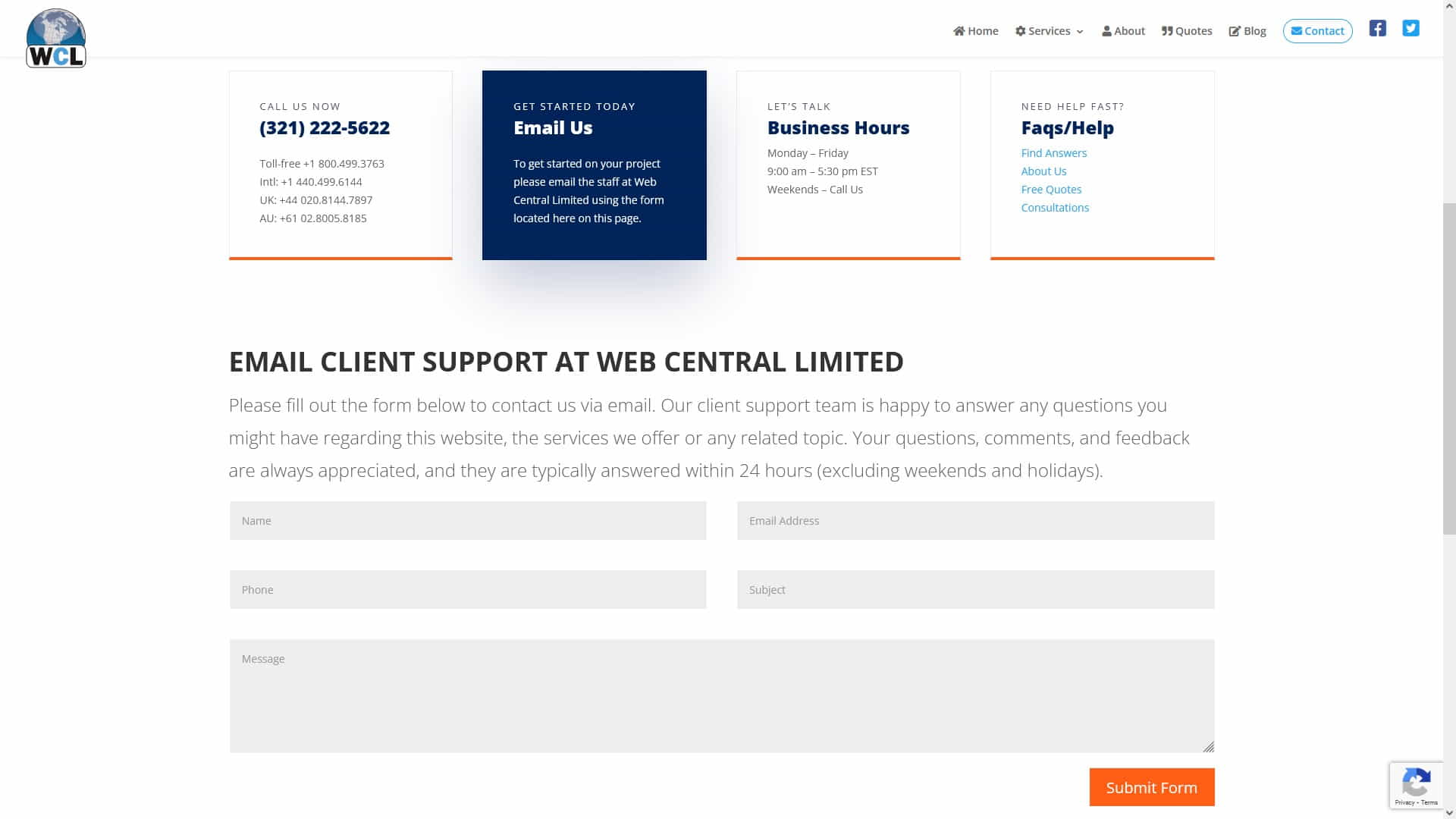
Web Central Limited Client Support Page

Web Central Limited Client Support Page

1. Choosing the Right Contact Form Plugin

There are several WordPress contact form plugins available, but it is crucial to choose one that suits your needs and gives the functionality you require. This article lists some of the most popular contact form plugins.

Contact Form 7 WordPress Plugin

Contact Form 7 WordPress Plugin

Contact Form 7

Contact Form 7: A versatile and user-friendly plugin boasting over 5 million active installations worldwide. This highly popular solution empowers website owners to design and implement multiple contact forms with ease, providing extensive customization options through straightforward markup language. As a top choice for businesses and individuals alike, Contact Form 7 delivers a reliable and efficient means of enhancing communication and visitor engagement on any WordPress website.

The Five Best Contact Form 7 Tips

Here are five lesser-known Contact Form 7 tips that can help you unlock its full potential and improve your website’s performance:

  1. Utilize conditional fields: Implementing conditional fields in your contact form allows you to display or hide specific fields based on user input. This helps you create more dynamic and personalized forms, improving user experience and reducing form abandonment rates.
  2. Customize response messages: Take the time to personalize the default response messages for successful submissions, errors, and spam detection. Customized messages can make your visitors feel more connected to your brand and provide clearer instructions in case of errors or issues.
  3. Employ placeholders: Using placeholders within your form fields can provide additional context and guidance to users, ensuring they understand the information you’re requesting. This can lead to more accurate submissions and enhance the overall user experience.
  4. Integrate file uploads: Contact Form 7 supports file uploads, allowing your visitors to send attachments such as documents, images, or other files. To enable this feature, use the file input tag in your form and adjust the accepted file types and size limits according to your needs.
  5. Enhance spam protection: While Contact Form 7 offers basic spam protection using CAPTCHAs, you can further strengthen your defenses by integrating third-party anti-spam plugins like Akismet. This helps ensure your form remains user-friendly while effectively filtering out unwanted spam submissions.

By implementing these lesser-known tips, you can optimize your Contact Form 7 experience, creating more engaging and effective forms that contribute to your website’s success.

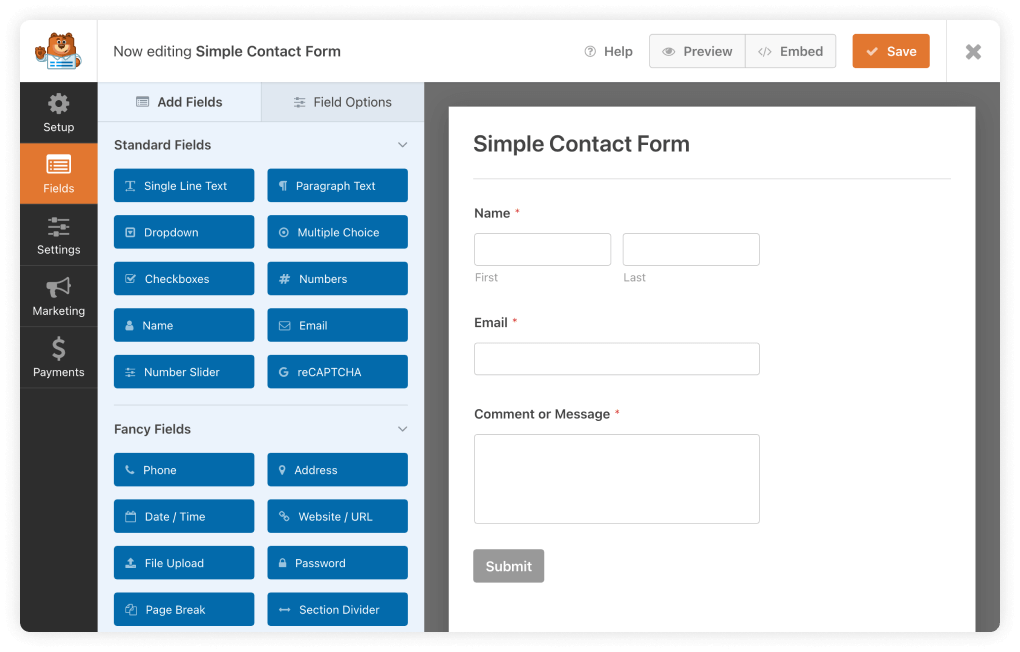
WP Forms WordPress Contact Form Plugin

WP Forms WordPress Contact Form Plugin

WPForms

WPForms: This wonderful WordPress contact form plugin is ideal for people looking for a straightforward, user-friendly solution. The drag-and-drop interface of WPForms’ form builder makes it easy for users of all expertise levels to design and publish unique forms. WPForms, which is available in both free and paid editions, has a range of complex features such as conditional logic, multi-page forms, and simple payment integration, making it a fantastic alternative for anyone wishing to upgrade their website and better engage with visitors.

The Top 5 WPForms Tips

Here are five lesser-known WPForms tips to help you create more engaging and effective contact forms while maintaining a human writing style without an AI tone:

  1. Leverage multi-page forms: For longer forms that require multiple fields or sections, consider using WPForms’ multi-page functionality. This feature enables you to break your form into smaller, more manageable segments, improving user experience and increasing the chances of form completion.
  2. Utilize smart conditional logic: WPForms offers advanced conditional logic, allowing you to show or hide fields, sections, or entire pages based on user input. This helps you create more personalized and interactive forms that cater to individual user needs while reducing form abandonment rates.
  3. Customize form confirmation messages and redirect options: Personalize the messages users receive upon successful form submission, and set up custom redirects to specific pages or content. Doing so makes your website more memorable to visitors, reinforces your brand’s image, and simplifies their experience.
  4. Implement geolocation data: By adding the Geolocation addon in WPForms, you can collect location information from your users without the need for additional form fields. Market more effectively, enhance the user experience, and better understand your audience’s location with this information.
  5. Integrate with email marketing services: Connect your WPForms to popular email marketing services like Mailchimp, Constant Contact, or AWeber. By having form submissions sent directly to your email lists, you may save time, improve efficiency, and maintain contact with your audience.

By applying these uncommon WPForms tips, you can enhance your contact forms’ performance and user experience, leading to increased customer engagement and a more successful online presence.

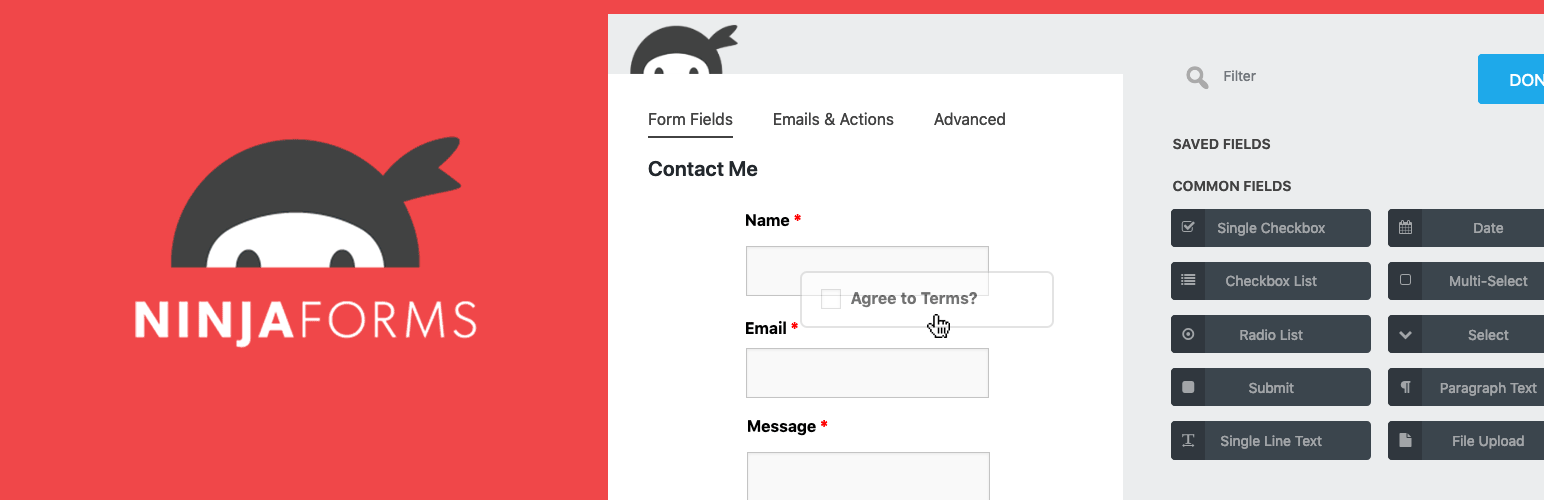
Ninja Forms Plugin For WordPress

Ninja Forms Plugin For WordPress

Ninja Forms

Ninja Forms: As a highly regarded option among website owners, Ninja Forms boasts an intuitive form builder and a wide array of add-ons that enhance its capabilities. The complimentary version of the plugin provides all the fundamental features necessary for creating effective contact forms. For those seeking a more sophisticated solution, premium plans are available, which unlock an extensive range of advanced options tailored to your specific needs.

Best Ninja Forms Tips

Here are five unique Ninja Forms tips to help you create more engaging and effective contact forms, using a human writing style without an AI tone:

  1. Save and continue: Ninja Forms allows users to save their progress on a form and resume at a later time. By enabling the Save Progress feature, you provide a convenient option for visitors with complex or lengthy forms, increasing the chances of form completion.
  2. Take advantage of layout and styling options: Ninja Forms offers a range of styling options through the Layout & Styles extension. This allows you to simply adjust the appearance of your forms to ensure they match your brand and website design without the need for bespoke CSS.
  3. Set up conditional email notifications: Configure email notifications to be sent conditionally based on user input. This enables you to send targeted messages to different recipients or departments within your organization, streamlining communication and improving efficiency.
  4. Use the datepicker option: Ninja Forms includes a built-in datepicker field, allowing users to easily select dates without manual input. This feature ensures accurate date selection and improves the overall user experience, especially for forms involving appointments, reservations, or events.
  5. Create reusable form templates: Save time and maintain consistency across your website by creating reusable form templates. With Ninja Forms, you can design custom templates that include your preferred fields, settings, and styles, which can then be quickly added to new forms as needed.

By implementing these unique Ninja Forms tips, you can optimize your contact forms for increased user engagement and a more successful online presence.

Some of the Essential Factors to Consider When Choosing a Contact Form Plugin

When selecting a contact form plugin for your website, it’s crucial to consider aspects such as user-friendliness, customization possibilities, and compatibility with both your theme and existing plugins. By perusing user reviews and examining the frequency of plugin updates, you can ascertain the dependability and consistent maintenance of the solution you choose, ensuring a seamless integration and optimal performance for your website’s contact form.


Summary of Factors to Consider

  • Ease of use
  • Customization options
  • Theme compatibility
  • Plugin compatibility
  • User reviews
  • Update frequency
  • Reliability and maintenance
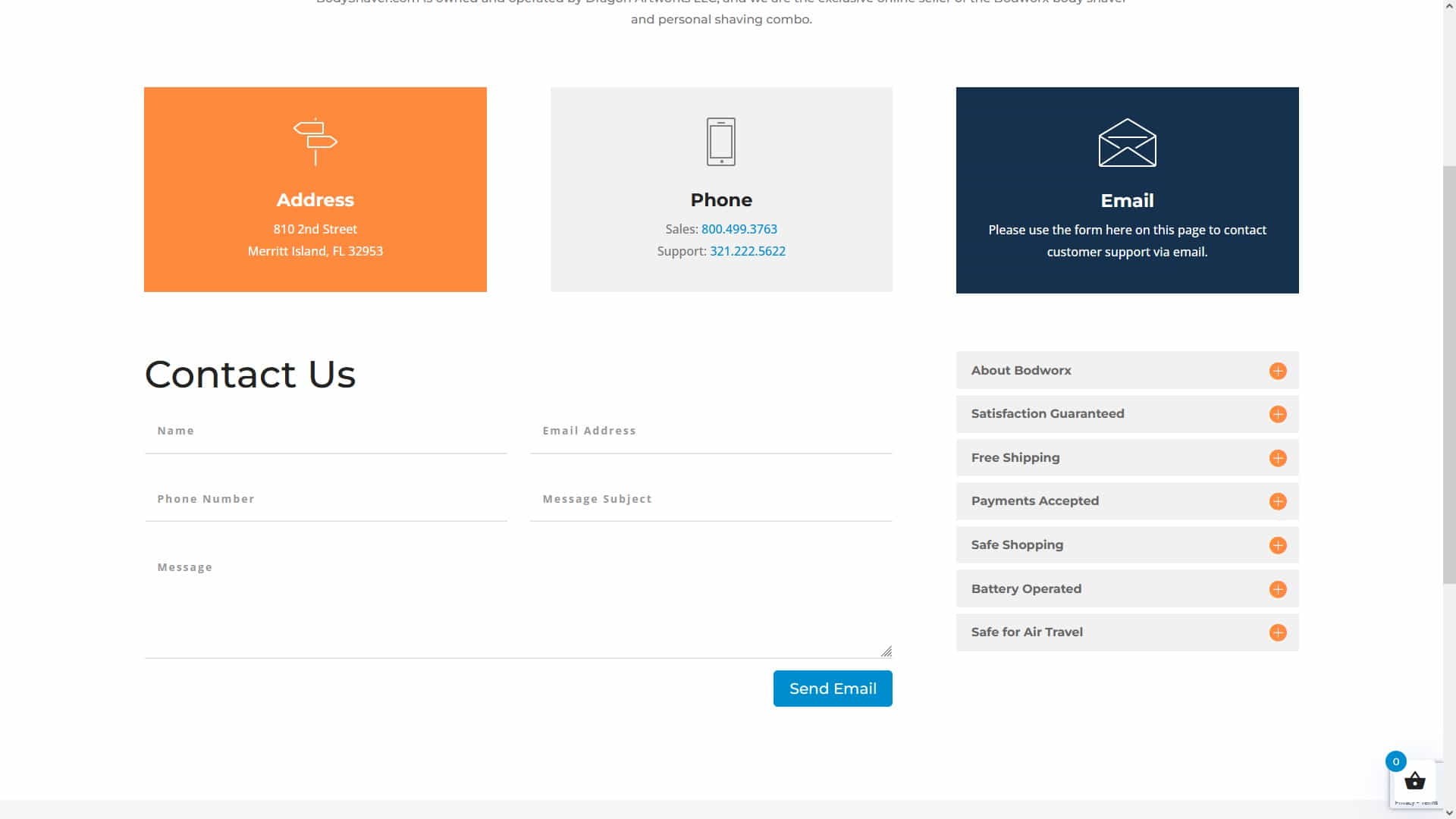
Contact Form Built and Styled Using Divi Theme

Contact Form Built and Styled Using Divi Theme

2. Installing Your Contact Form Plugin

After carefully selecting the most suitable contact form plugin for your needs, it’s time to install it on your WordPress website. Please follow the procedures that are provided below to guarantee that the installation process goes off without a hitch:

  1. Log in to your WordPress dashboard.
  2. Navigate to Plugins > Add New.
  3. Search for the plugin using the search bar.
  4. Next to the appropriate plugin, click the “Install Now” option.
  5. After installation, click “Activate” to activate the plugin on your website.

After activating the plugin, you should see a new menu item in your WordPress dashboard related to the contact form plugin.

3. Creating Your Contact Form

With the contact form plugin installed and activated, you can now create your custom contact form. The specific procedures may change based on the plugin you use, so refer to the documentation for the contact form plugin you selected if you need help. However, generally speaking, you will need to:

  1. Go to the plugin’s settings or form builder page in your WordPress dashboard.
  2. Create a new form, either from scratch or using a pre-built template provided by the plugin.
  3. Customize the form by adding or modifying fields such as name, email address, subject, message, and any other necessary fields.
  4. Set up email notifications, so you receive an email when someone submits the form.
  5. Save your form and make a note of the generated shortcode or form ID.

4. Embedding the Contact Form on Your Website

Having created your contact form, the next step is to include it into your website. The way you go about doing this will hinge on the specific location where you’d like the form to be showcased:

  • On a page or post: Edit the page or post where you want to add the form, and insert the form’s shortcode or use the block editor to add the contact form block.
  • In a sidebar or widget area: Go to Appearance > Widgets, and add the contact form widget to the desired widget area. Enter the form ID or select the form from the dropdown menu, if applicable.
  • Within your theme’s template files: If you’re comfortable with PHP, you can add the form directly to your theme’s template files using the plugin’s provided PHP function or shortcode.
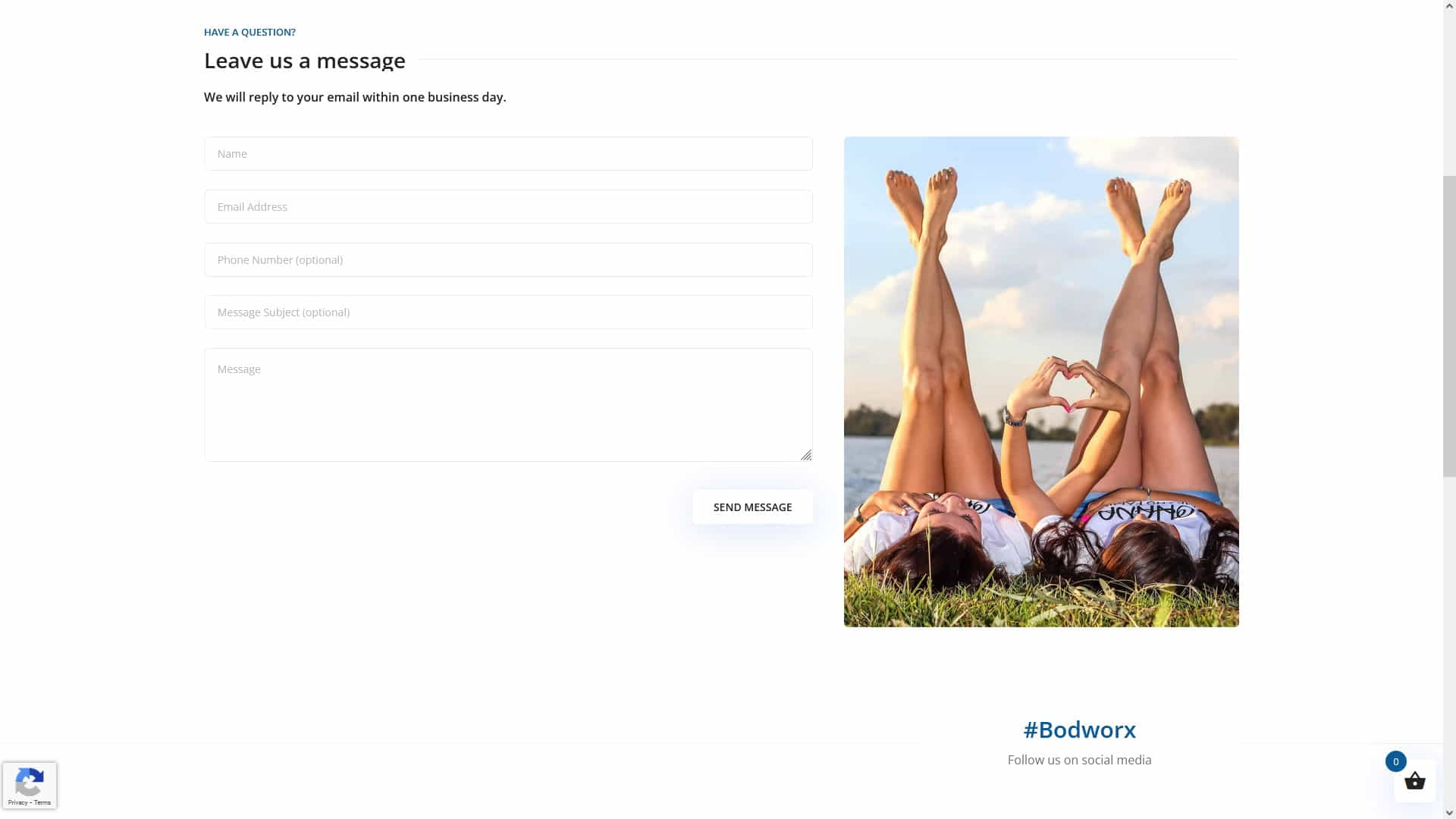
Bodworx Website WordPress Contact Form

Bodworx Website WordPress Contact Form

5. Customizing Your Contact Form

Most contact form plugins offer various customization options, such as styling, field layout, and validation messages. Here are some tips for customizing your contact form:

  • Match the form’s design and colors to your website’s theme for a cohesive look.
  • Use clear, concise labels and placeholder text to guide users through the form.
  • Enable client-side and server-side validation to ensure users submit accurate information.
  • Consider adding a CAPTCHA or other anti-spam measures to prevent spam submissions.
  • Add custom CSS or JavaScript, if necessary, to fine-tune the form’s appearance and behavior.

6. Optimizing Your Contact Form for SEO and User Experience

A well-optimized contact form not only improves user experience but can also boost your website’s SEO performance. Here are some tips for optimizing your contact form:

  • Keep the form short and simple, only asking for essential information to avoid overwhelming users.
  • Use clear, concise, and action-oriented headings and button labels to guide users through the form submission process.
  • Ensure your form is responsive and works well on all devices, including mobile phones and tablets.
  • Include descriptive alt attributes for any images or CAPTCHAs to improve accessibility and SEO.
  • Test the form’s loading speed and optimize it to load quickly, as slow-loading forms can negatively impact user experience and SEO.
Ash Dermatology Merritt Island WordPress Website Design Contact Form

Ash Dermatology Merritt Island WordPress Website Design Contact Form

An Inspirational Story About Contact Forms!

Wanda, a hardworking business owner, understood the need of establishing a strong online profile in order to attract a wider audience. She understood that incorporating a contact form into her WordPress website was integral to realizing her objectives, but she was uncertain about how to begin. After thoroughly researching various contact form plugins, Wanda ultimately chose WPForms, attributing her decision to the plugin’s intuitive interface and robust functionality.

Diligently following the instructions provided in this guide, Wanda managed to incorporate a tailored contact form into her website. In a relatively short time, she observed a considerable uptick in inquiries and customer interactions. Wanda was very pleased with the outcome after realizing the need of giving a simple method for her website visitors to contact her.

If Wanda were to share some wisdom, she would advise others to meticulously examine the range of contact form plugins available and select one that aligns with their unique requirements. Additionally, Wanda would stress the importance of refining the contact form for both user experience and SEO optimization, as these elements can substantially influence a website’s overall performance and success.

Person Filling Out a Website Form

Person Filling Out a Website Form

Advice from a WordPress Marketing Expert

As a WordPress website design and marketing expert, I cannot stress enough the significance of conducting thorough research when selecting a WordPress plugin, particularly for contact forms. A well-functioning contact form is indispensable for generating leads and establishing connections with potential clients. It is the lifeblood of your online presence, transforming your website from a static showcase into a dynamic, interactive platform for business growth.

Considerations such as form type support, ease of customization, and integration should all be made before settling on a contact form plugin. A plugin that caters to these criteria will not only streamline the process of creating and managing contact forms but also ensure that they align with your brand and serve your business needs effectively.

Remember that your contact form is generally your website visitors’ first point of contact with your business. Therefore, it must provide a seamless and user-friendly experience to encourage communication and foster trust with your audience.

In summary, investing time and effort in researching and selecting the right contact form plugin for your WordPress website can yield substantial long-term benefits. By prioritizing user experience and optimizing the form for SEO, you can tap into the full potential of your website as a powerful tool for driving leads, fostering customer relationships, and propelling your business to greater heights.

Conclusion

Engaging visitors and building your online presence requires adding a contact form to your WordPress website. By following this guide, you can choose the right contact form plugin, create a customized form, and optimize it for both user experience and SEO. You may also be interested in our article on Essential WordPress Plugins for Every Website. Remember to test your form thoroughly and ensure it works seamlessly on all devices to provide the best possible experience for your visitors. With a well-designed and optimized contact form in place, you can look forward to increased customer engagement and a thriving online presence.

Disclosure: Some of the links in this post could be considered “affiliate links.” If you click on one of those links and buy the item, I’ll get a commission, but it won’t raise your price.

Affiliate Links

James Turner

James Turner

Author/Copywriter

Are you looking for a tech blogger and sales copywriter who can turn your message into a powerful tool for persuasion? Look no further than James Turner, a seasoned professional with over 25 years of experience in the tech industry. With a deep understanding of how to craft words that connect with readers and drive results, James is a master of the art of persuasive writing.

Why Choosing the Best Web Hosting Company Matters in 2025

Find out why choosing the best web hosting company matters in 2025 to boost your site’s performance and skyrocket sales.

Hiring a Website Designer

Hiring a website designer? Discover actionable tips, red flags to avoid, and how to find the right designer to create a website that grows your business.

How to Create a Landing Page Using WordPress

Follow our guide on how to create a landing page using WordPress and the built-in Block Editor, page builder plugins, or specialized themes.

Top 5 Plugins for WordPress Speed Optimization

Top 5 Plugins for WordPress Speed Optimization

If you intend to create a website for your company, make sure to familiarize yourself with the Top 5 Plugins for WordPress Speed Optimization. In addition to making your site load faster, these plugins improve user satisfaction, search engine rankings, and functionality. This article discusses WordPress performance optimization and lists the five best plugins.

No matter your webmaster expertise, site performance is crucial. With the ever-evolving internet landscape, user expectations are higher than ever, and search engines like Google are prioritizing fast-loading websites. To ensure your site stays competitive and delivers a satisfying experience to your visitors, let’s explore the features, benefits, and installation process of each of these top 5 WordPress speed optimization plugins.

Related Articles:

Page Load Time is an SEO Ranking Factor
Be a WordPress Superhero by Improving Your Website Page Load Times

“WordPress speed optimization is the secret ingredient to turning your website into an online Usain Bolt – leaving others in the dust and visitors clicking ‘like’ on your lightning-fast content.” – The Whimsical Webmaster

WP Rocket WordPress Speed Optimization Plugin

1. WP Rocket

WP Rocket is a premium WordPress speed optimization plugin that is both user-friendly and powerful. With its simple setup process and advanced features, WP Rocket is perfect for beginners and experts alike.

Features

  • Page caching
  • Browser caching
  • Gzip compression
  • Lazy load for images and videos
  • Minification and concatenation of CSS, JavaScript, and HTML files
  • Defer JavaScript loading
  • Database optimization

Click here to check out WP Rocket’s official website.

LiteSpeed Cache WordPress Plugin

LiteSpeed Cache WordPress Plugin

2. LiteSpeed Cache

LiteSpeed Cache is a free, high-performance optimization plugin that works best with LiteSpeed Web Server. It offers a variety of optimization techniques, including server-level caching and image optimization.

Features

  • Server-level full-page caching
  • Browser caching
  • Image optimization
  • Minification and concatenation of CSS, JavaScript, and HTML files
  • HTTP/2 push
  • Lazy load for images
  • Database optimization

Visit LiteSpeed Cache’s official website to learn more.

Autoptimize Optimization Plugin for WordPress

Autoptimize Optimization Plugin for WordPress

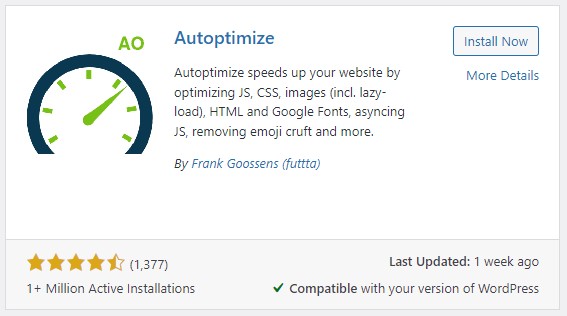
3. Autoptimize

Autoptimize is an easy-to-use yet powerful optimization plugin concentrating on minifying and combining CSS, JavaScript, and HTML files. For enhanced performance, it can be paired with other caching plugins seamlessly.

Features

  • Minification and concatenation of CSS, JavaScript, and HTML files
  • Image optimization (with integration of ShortPixel Image Optimizer)
  • Asynchronous and deferred loading of JavaScript
  • Google Fonts optimization

Find more information about Autoptimize on their official website.

W3 Total Cache

W3 Total Cache

4. W3 Total Cache

W3 Total Cache is an all-encompassing caching and optimization plugin that boasts an extensive range of features. Its sophisticated settings and customization options make it a top choice for advanced-experience users.

Features

  • Page caching
  • Browser caching
  • Database caching
  • Object caching
  • Minification and concatenation of CSS, JavaScript, and HTML files
  • Content Delivery Network (CDN) integration
  • Mobile-specific caching

Discover more about W3 Total Cache on their official website.

WP Fastest Cache WordPress Plugin

WP Fastest Cache WordPress Plugin

5. WP Fastest Cache

WP Fastest Cache has user-friendly features. Its setup is simple, making it suited for beginners and experts. The plugin’s UI is sleek and easy to configure, so website owners who wish to speed up their site without any work may consider WP Fastest Cache.

WP Fastest Cache optimizes site speed for bloggers, company owners, and online retailers. It improves user experience, page load times, and search engine rankings. WP Fastest Cache is a great caching plugin for optimizing website performance.

Features

  • Page caching
  • Browser caching
  • Minification of CSS, JavaScript, and HTML files
  • Gzip compression
  • Content Delivery Network (CDN) integration
  • SSL and mobile support

Visit WP Fastest Cache’s official website for more information.

Page Load Time is an SEO Ranking Factor

Page Load Time is an SEO Ranking Factor

Inspirational Story: Important Lessons I Learned from a Mountain Hike

Last year, some pals of mine wanted to get out of town and see some mountains, so they planned a hike. They started out bright and early, full of anticipation and enthusiasm.

Steep inclines, loose rocks, and muddy roadways were just some of the obstacles they encountered as they began their trek. They persisted, nevertheless, and supported one another through the tough times. Beautiful landscapes, verdant forests, and an array of vibrant animals greeted them along the route.

Friends got tired as the day went on. A few people debated turning around, but everyone was urged on to keep going. The group was confident that the climb would be worthwhile.

The party reached the summit as the sun sank. The breathtaking vista that greeted them took their breath away. While they took in the breathtaking panorama, they reflected on the lessons they’d picked up along the way:

  • Perseverance: They kept pushing themselves despite setbacks and ultimately succeeded.
  • Teamwork: They worked together, relying on and helping each other out.
  • Appreciation: They discovered the value of the present moment and the wonders of nature.

They took these teachings with them as they down the mountain and used them to improve themselves as people.

Expert Opinions

“As a web developer, I highly recommend WP Rocket for its user-friendly interface and powerful optimization features. It’s made a significant difference in improving the loading speed of my clients’ websites.” – Jesse Carlson, Web Developer

“LiteSpeed Cache has been a game-changer for my e-commerce site. The server-level caching and image optimization features have helped reduce my site’s loading time and improve user experience.” – Trisha H., E-commerce Store Owner

“W3 Total Cache is a fantastic plugin for sophisticated users that want complete control over the caching and optimization settings on their website. It has a plethora of functionality and customization choices.” – Ted Chen, SEO Consultant

Final Thoughts on WordPress Speed Optimization

Improving the user experience, boosting conversion rates, and climbing the search engine ranks all depend on how quickly your WordPress site loads. This article has covered the top 5 plugins for improving your site’s performance. These plugins include WP Rocket, LiteSpeed Cache, Autoptimize, W3 Total Cache, and WP Fastest Cache. Think about what you’ll actually use the plugin for and pick one that fits the bill. It is important to remember to do performance tests both before and after making optimizations to your site.

Disclosure: Some of the links in this post may be “affiliate links.” If you click on one of those links and purchase the item, I will receive a commission, but it will not increase your cost.

Affiliate Links

James Turner

James Turner

Author/Copywriter

Are you looking for a tech blogger and sales copywriter who can turn your message into a powerful tool for persuasion? Look no further than James Turner, a seasoned professional with over 25 years of experience in the tech industry. With a deep understanding of how to craft words that connect with readers and drive results, James is a master of the art of persuasive writing.

Why Choosing the Best Web Hosting Company Matters in 2025

Find out why choosing the best web hosting company matters in 2025 to boost your site’s performance and skyrocket sales.

Hiring a Website Designer

Hiring a website designer? Discover actionable tips, red flags to avoid, and how to find the right designer to create a website that grows your business.

How to Create a Landing Page Using WordPress

Follow our guide on how to create a landing page using WordPress and the built-in Block Editor, page builder plugins, or specialized themes.

WordPress Website Design Packages: Choosing the Best Fit

WordPress Website Design Packages: Choosing the Best Fit

With so many WordPress Website Design Packages to choose from, it can be difficult to discover the best fit for your business or personal website. This comprehensive guide will assist you in navigating the alternatives and selecting a package that matches your individual requirements.

Whether you’re unfamiliar with web design or the services needed to construct a successful site, creating a WordPress website can be difficult. WordPress website design bundles combine vital services and give clients options based on their demands and budget. This article covers WordPress website design packages, points to consider when picking one, and recommended options.

Understanding Website Design Packages and Their Benefits

Understanding Website Design Packages and Their Benefits

“Choosing a WordPress Website Design Package is like a game of Tetris – finding the perfect fit is key, and when everything falls into place, it’s pure magic.”

Understanding WordPress Website Design Packages

WordPress Website Design Packages typically include a variety of services, such as website design, maintenance, consultation, domain registration, and web hosting. These packages may also offer ongoing support services for the duration of the contract. In this article, we will compare packages to help you decide.

Web design agencies offer these services to assist businesses and individuals in building and managing WordPress-based websites (CMS). The packages typically vary in scope and complexity to cater to different needs and budgets.

Here’s a description of the components that may be included in these packages:

  • Website Design Services: This is the core service offered in all packages. Design agencies create a visually appealing, functional, and responsive website using WordPress themes and plugins. They ensure that the site aligns with the client’s branding, industry, and target audience.
  • Website Maintenance: Some packages include ongoing maintenance services, where the design agency takes responsibility for updating plugins, themes, and WordPress core. They also address any bugs or issues that might arise, ensuring the website remains stable and secure.
  • Consultation: Advanced packages often feature consultation services, where the design agency provides expert advice on content strategy, search engine optimization (SEO), user experience (UX), and other website-related aspects. This helps clients optimize their website to achieve their desired goals.
  • Domain Registration and Web Hosting: Some options include domain registration and hosting. This simplifies the process by giving clients one contact for all website needs.
  • Ongoing Support Services: Comprehensive packages may include ongoing support services throughout the contract duration. Clients have access to a team of experts who can help with technical issues, strategy consultations, and other website management tasks.
  • Content Creation and Management: In some cases, design agencies might also offer content creation and management services. Writing blog articles, developing images, and structuring the website’s material can keep it new, entertaining, and relevant.
  • Search Engine Optimization (SEO): SEO services boost website visibility on search engines like Google. Design agencies optimize the website’s structure, content, and meta tags to make it more search-engine-friendly, increasing the chances of ranking higher in search results.
  • Performance Optimization: Design agencies may also work on improving the website’s performance by implementing techniques like caching, image optimization, and code minification. This ensures that the website loads quickly and provides a smooth user experience.
  • Analytics and Reporting: Website analytics and reporting services can reveal website traffic, user activity, and marketing performance in some packages. This information helps clients make data-driven decisions to improve their website’s performance.

All-Inclusive Website Design Packages are designed to cater to the diverse needs of clients, from basic website design to comprehensive solutions that cover every aspect of website management. By picking the proper package, clients can ensure that their website is well-designed, optimized, and managed to meet their goals.

Get Help Choosing the Right Package for Your Business

Get Help Choosing the Right Package for Your Business

Basic Website Design Packages

Website Design Only

Basic packages usually focus on the website design aspect. They provide you with a professionally designed and functional WordPress website that suits your needs. However, you’ll need to handle domain registration, web hosting, and ongoing maintenance on your own. This option may be appropriate for you if you are comfortable managing these responsibilities and only require a well-designed website.

Design and Maintenance

Some basic packages also include website maintenance services. This means the design agency will handle updates, bug fixes, and minor tweaks to your website. These packages are great if you want a hassle-free experience and prefer to have professionals handle design and maintenance.

Advanced WordPress Packages

Website Design, Maintenance, and Consultation

Advanced packages provide a more comprehensive service, including website design, maintenance, and consultation. This means you’ll get expert assistance on content strategy, SEO, and other elements of website management. This package is perfect for businesses looking for a more hands-on approach from their design agency, ensuring their website meets all their specific needs and objectives.

Included Domain Registration and Web Hosting

Advanced website packages can help people and businesses get online faster. Some advanced options include domain registration and web hosting. This can save you time and work by allowing you to bundle different suppliers into a single bundle. Bundled packages let you meet all your website demands in one spot. This makes managing and updating your website easy. Avoiding several suppliers lets you focus on creating your online identity and engaging with your audience.

Bundling domain registration and site hosting can also save money. Bundling services saves money because many providers provide discounts. An advanced package with domain registration and web hosting is an easy and efficient method to start and maintain a website. It could improve your website administration and internet exposure.

Advanced WordPress Website Design Bundles

Advanced WordPress Website Design Bundles

Comprehensive Website Design, Maintenance, and Web Hosting Packages

Comprehensive packages are the most inclusive, offering a complete solution for your website needs. These packages typically include all the features of advanced packages, plus additional services and support throughout the life of the contract. This option is for those who want a fully managed website design package.

Ongoing Support Services

One of the key features of comprehensive packages is ongoing support services. This means the design agency will assist you with any issues arising during the contract’s life. From technical support to strategy consultations, you’ll have access to a team of experts who will ensure your website remains optimized and effective.

Choosing the Right Package for Your Needs

It’s time to select the WordPress Website Design Package that best suits your demands now that you have a better understanding of the many options.

Before choosing, consider these factors:

  • Budget: Consider your budget and the value each package offers. While comprehensive packages may have higher upfront costs, they often provide long-term savings and convenience. If you are starting a new business, you should calculate your startup costs to understand your budget fully.
  • Technical Expertise: A basic package may suffice if you’re comfortable handling website maintenance and updates. Look for packages that include maintenance and assistance if you prefer a hands-off approach.
  • Business Objectives: Consider your business goals and objectives when choosing a package. An advanced or comprehensive package may be more suitable if you need a more tailored solution with strategic consultation. Consider writing a business plan to help you understand your goals and objectives.
  • Time Commitment: Evaluate how much time you can devote to managing your website. Comprehensive packages often provide the most convenience and time savings, as the design agency handles all aspects of your site.
Choosing the Right Fit for Your Company

Choosing the Right Fit for Your Company

An Inspiration Success Story

Tara, a small business owner, was struggling to find the perfect website design package for her company. She knew that having a professional website was crucial for her business’s success, but she was unsure which package would suit her needs best.

After researching and consulting with several design agencies, Tara decided to invest in a comprehensive package. This decision allowed her to focus on her core business operations while the design agency took care of her website needs. Over time, her investment in a professionally designed and managed website paid off, with increased online visibility, better customer engagement, and higher sales.

The key life lesson from Tara’s story is the importance of investing in the right resources for your business. By choosing a website design package that aligned with her needs and objectives, Tara was able to unlock her business’s true potential and achieve success.

Expert Comments

Paulina, Web Design Expert: “Investing in a comprehensive website design package has proven to be really useful for my clients in my experience. It gives clients a professionally designed website as well as ongoing assistance, allowing them to concentrate on their core company operations.”

Jordan, Digital Marketing Consultant: “Choosing the right WordPress Website Design Package is crucial for any business. Considering the initial design and long-term maintenance and support services is essential. I always recommend my clients to carefully evaluate their needs and choose a package that aligns with their objectives.”

Lena, SEO Specialist: “One common mistake I see is businesses opting for the cheapest package available without considering the value it provides. A well-designed and maintained website can pay dividends over time. It’s important to balance cost and quality when selecting a package.”

Final Thoughts on Choosing a Website Design Package for Your Personal or Business Site

Choosing the right WordPress Website Design Package is crucial for the success of your website. You can find a package that best meets your needs by considering your budget, technical expertise, business objectives, and time commitment. Whether you choose a basic, advanced, or comprehensive package, a professional design agency can ensure your website is well-designed, optimized, and effective.

Business website creation is crucial. When choosing a package, consider finances, technical knowledge, corporate goals, and time commitment. Remember, a professionally designed and managed website may help your business grow and prosper online.

Disclosure: Some of the links in this post may be “affiliate links.” If you click on one of those links and purchase the item, I will receive a commission, but it will not increase your cost.

Affiliate Links

James Turner

James Turner

Author/Copywriter
Are you looking for a tech blogger and sales copywriter who can turn your message into a powerful tool for persuasion? Look no further than James Turner, a seasoned professional with over 25 years of experience in the tech industry. With a deep understanding of how to craft words that connect with readers and drive results, James is a master of the art of persuasive writing.

Why Choosing the Best Web Hosting Company Matters in 2025

Find out why choosing the best web hosting company matters in 2025 to boost your site’s performance and skyrocket sales.

Hiring a Website Designer

Hiring a website designer? Discover actionable tips, red flags to avoid, and how to find the right designer to create a website that grows your business.

How to Create a Landing Page Using WordPress

Follow our guide on how to create a landing page using WordPress and the built-in Block Editor, page builder plugins, or specialized themes.

My Island Designs

Pin It on Pinterest